

Welcome to DettingenConnect, the app for your community. Here you'll find events, places, businesses, clubs and groups, meet people who share your hobbies and send each other messages. This handbook explains step by step how everything works – even if you don't usually have much to do with apps.
1. Getting started
Looking around without an account
You can also look at DettingenConnect without an account. Guests first see the Welcome page with the next events under Coming up. You can also look at events, places, clubs, businesses and groups without an account.
For anything where you take part yourself, you need an account: booking events, joining organisations, getting to know people and chatting.
Good to know: You can have an account from the age of 14.
Creating an account
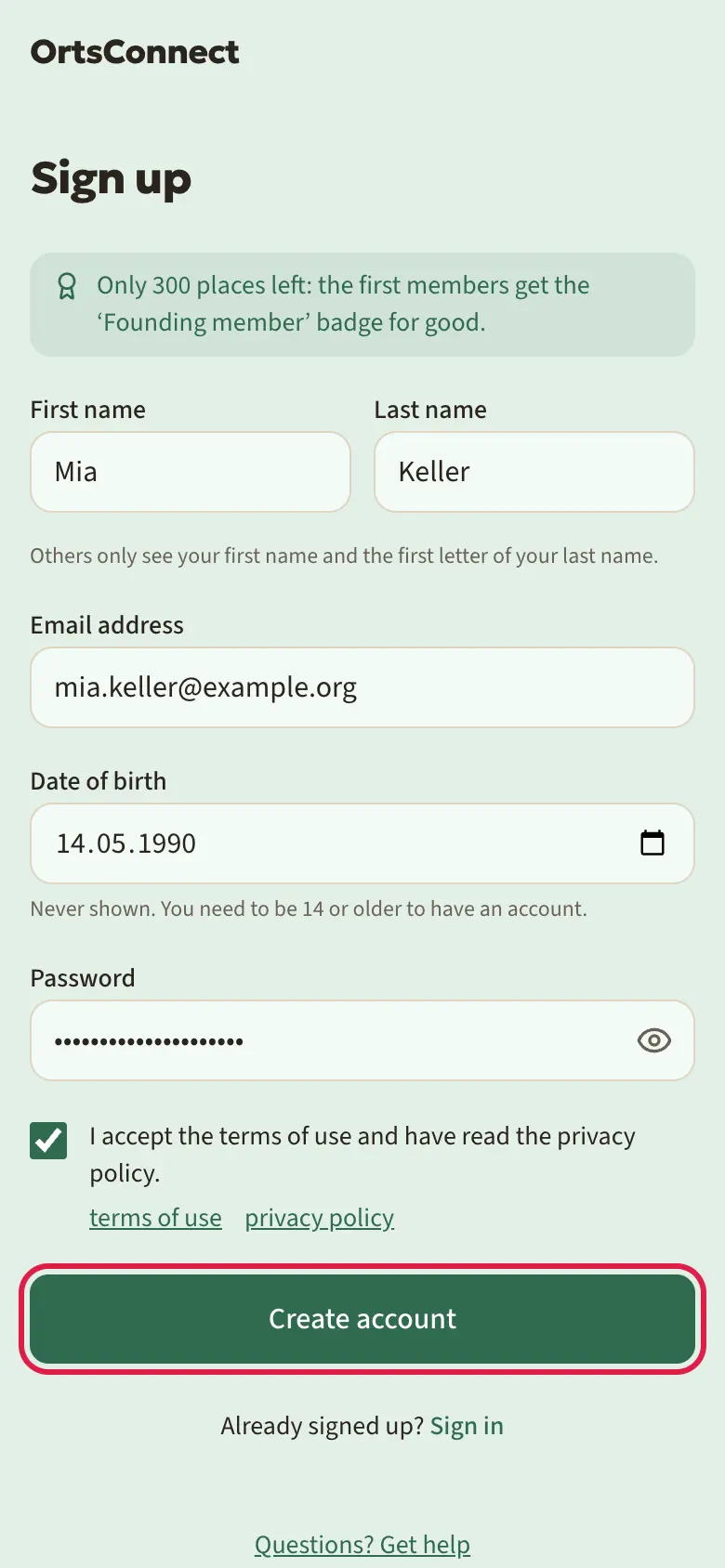
- Tap the round circle with the question mark at the top right. The Sign in page opens.
- Tap Sign up now at the bottom.
- Enter your First name and your Last name. Others only see your first name and the first letter of your last name, for example ‘Anna M.’.
- Enter your Email address.
- Enter your Date of birth. The date itself is never shown; your profile shows your age and your generation, for example ‘55 years · Gen X’, plus your star sign (you can change this under Show age and under Settings › Privacy). The app also needs it for parental consent, for the outlook section in your profile (from 18) and for groups with an age range.
- Choose a Password. Use the eye symbol in the field to show it so you can check it; tap again to hide it.
- Tick the box for the terms of use and the privacy policy. You can read both first using the links.
- Tap Create account.
Tip: If you're under 16, an extra field Parent’s email address appears. More on this in the section ‘Parental consent’.
Good to know: The first members get the Founding member badge for ever. As long as places are still available, the sign-up page tells you how many are left. The app shows the badge next to your name: on your profile, on your card in People, in organisations' member lists and in the chat.
Your profile photo
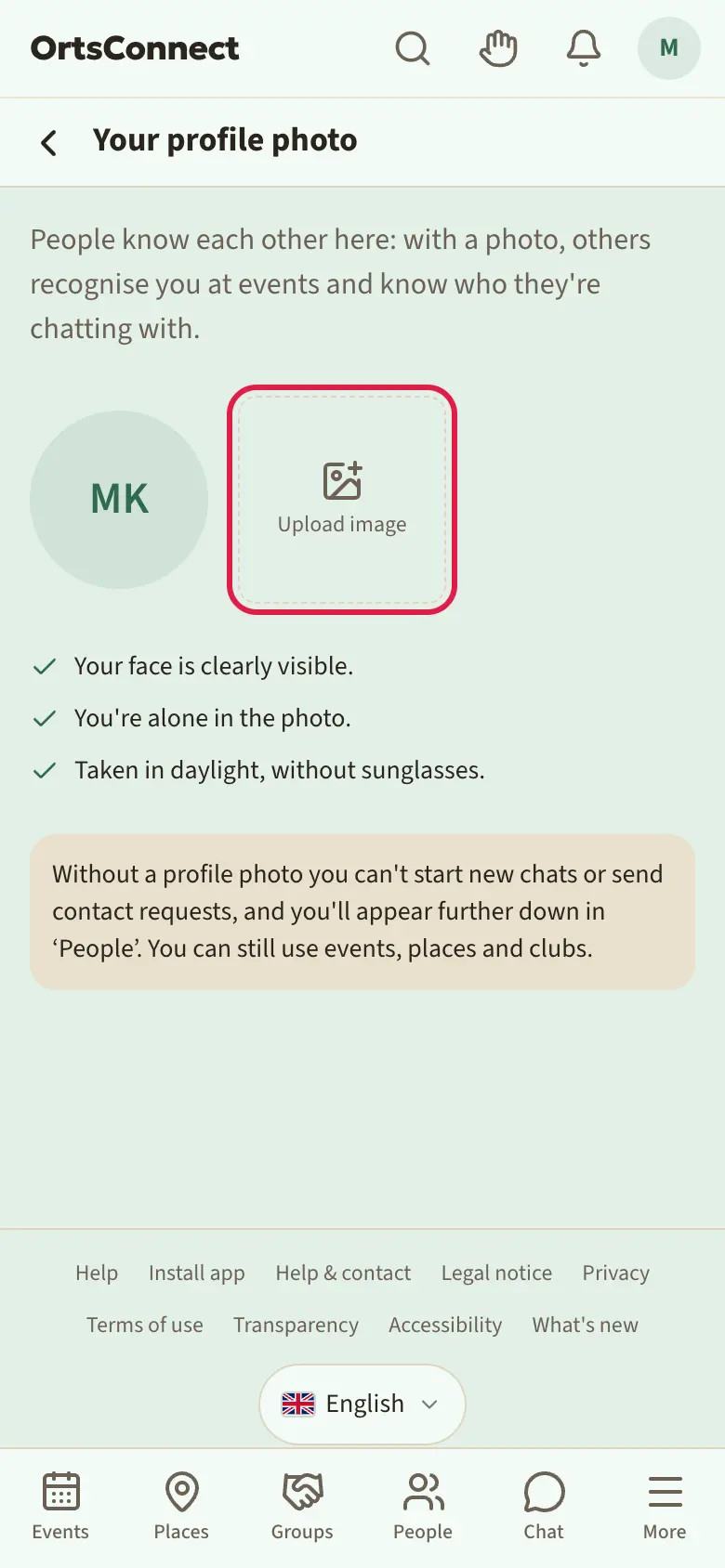
Right after signing up, DettingenConnect asks you for a Profile photo. Tap Upload image and choose a photo in which your face can be seen clearly. Then tap Continue to go on to confirming your email address.
You can also use the app without a photo to look at events, places and clubs. Without a profile photo, however, you can't start new chats and can't send contact requests, and you appear further down under People. You can add a photo at any time under Edit profile › About me.
Confirming your email
After you sign up, DettingenConnect sends you an email. It contains a Confirm email button.
- Open your email inbox.
- Open the email from DettingenConnect with the subject ‘Please confirm your email address for DettingenConnect’.
- Tap Confirm email.
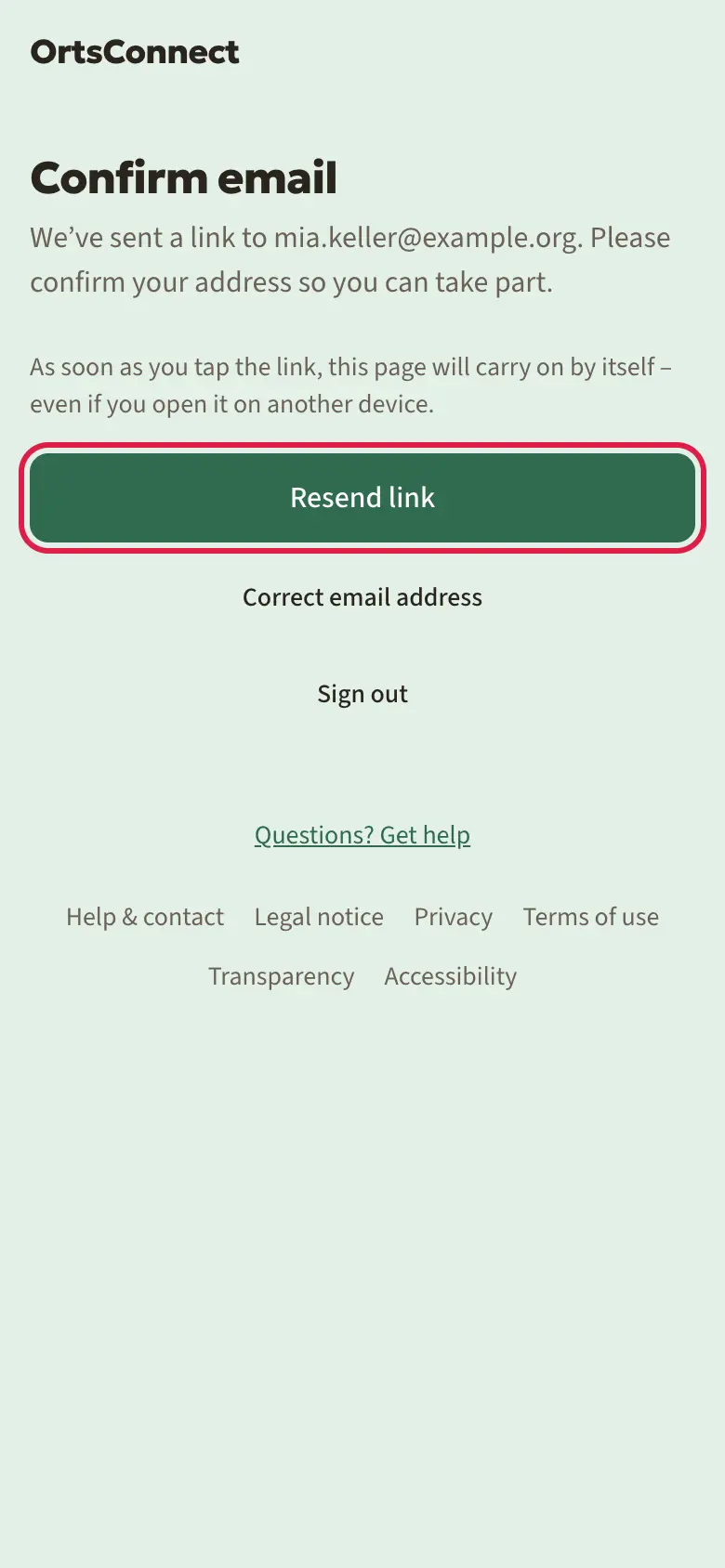
Until you have confirmed your address, DettingenConnect waits on the Confirm email page. As soon as you've tapped the link, it carries on there by itself, even if you open the email on another device or in another browser. You don't need to sign in there.
- Didn't get an email? Check your spam folder too. On the Confirm email page you can request a new email with Resend link.
- Sign out takes you off the page, and you can sign in again later.
Parental consent (for 14- and 15-year-olds)
If you're under 16, you need the consent of a parent.
- When you sign up, you enter a Parent’s email address. It must be a different address from your own.
- DettingenConnect sends your parents an email with a Give consent button.
- Your parents tap it and then tap I give my consent.
- After that you can take part.
Until then you'll see the Waiting for your parents page. You can look around the app, but you can't take part yet. On this page you can send the request again with Resend.
Good to know: The link for your parents is valid for 30 days. After 7 days they get a reminder. If there's no consent after 30 days, the account is deleted.
With consent you use the app like everyone else, including People and direct messages. Your parents are responsible for how you use it.
Signing in
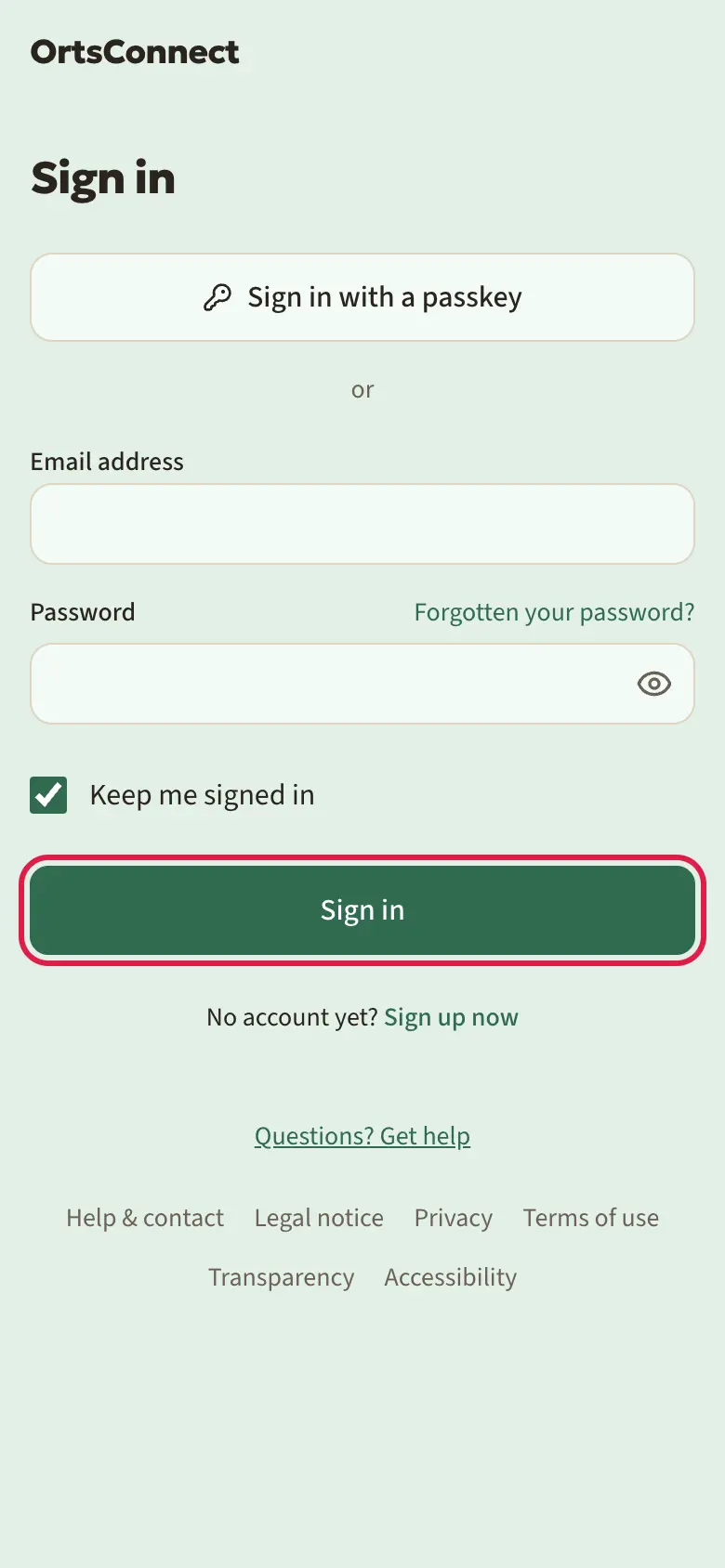
- Tap the circle with the question mark at the top right.
- Enter your Email address and your Password.
- If you want to stay signed in on this device, tick Keep me signed in.
- Tap Sign in.
Forgotten your password
- On the Sign in page, tap Forgotten your password?.
- Enter your email address and tap Send link.
- Open the email and tap Reset password.
- Enter a new password and tap Save password.
Signing in faster with a passkey
A passkey is a key that is stored securely on your phone. With it you sign in using face recognition, your fingerprint or your device PIN – no password needed at all.
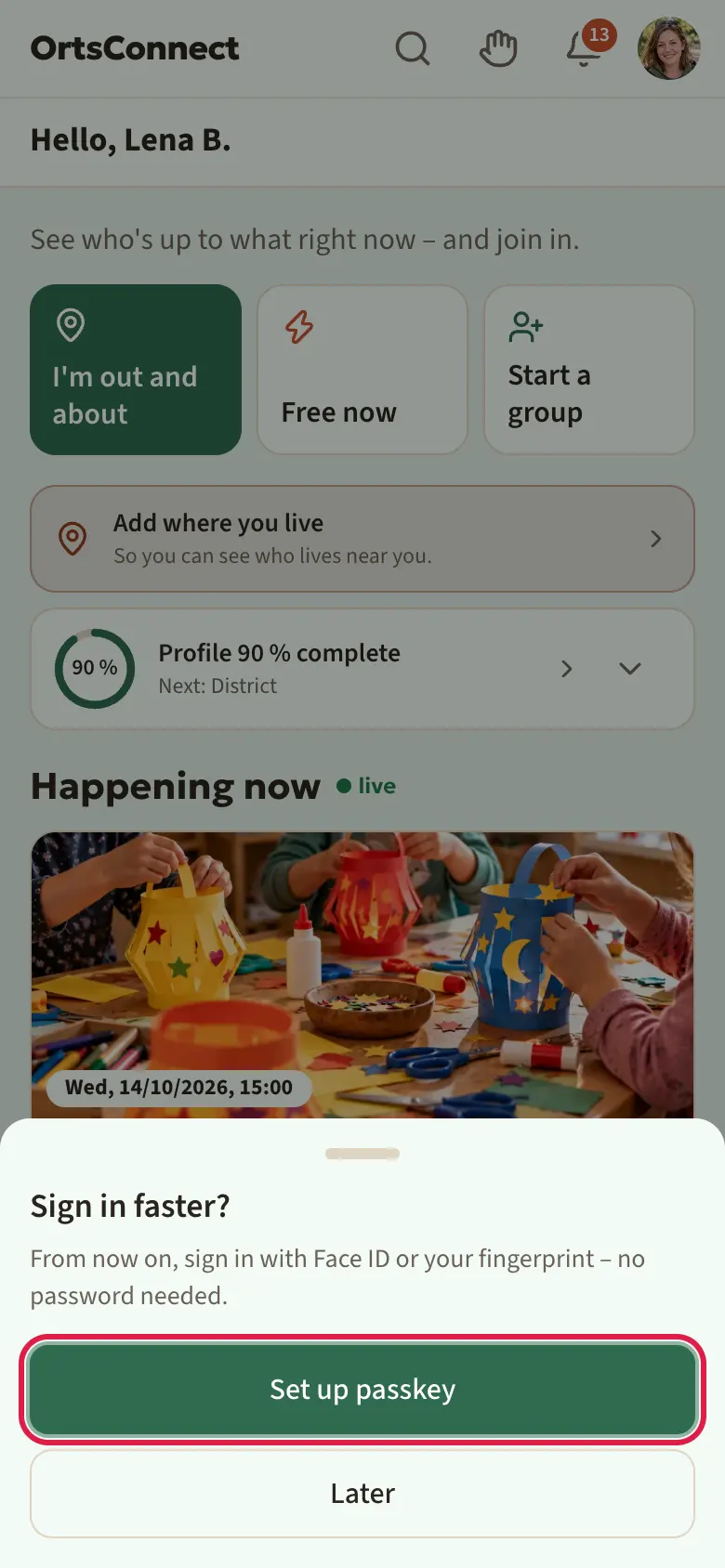
After you sign in for the first time, DettingenConnect asks you once: Sign in faster?
- Tap Set up passkey.
- Give the passkey a name, for example ‘iPhone’.
- Tap Add passkey and confirm with your face, finger or PIN.
If you don't want to do this now, tap Later. You can add a passkey at any time under Settings › Security.
To sign in, you then tap Sign in with a passkey on the Sign in page.
Two-factor sign-in (optional)
Two-factor sign-in is optional extra protection. When it's on, you need a code from an authenticator app on your phone as well as your password when you sign in.
Good to know: It's only compulsory for the moderators and administrators of DettingenConnect, and only if the operator has switched that on. In that case there's a note under Security. For everyone else it stays optional.
How to turn it on:
- Open the avatar menu at the top right and tap Settings.
- Tap Security. You may have to confirm your password first.
- Next to Two-factor sign-in, tap Set up.
- Scan the QR code with your authenticator app.
- Enter the Code from the app and tap Confirm.
- It now says Active. Below that you'll see your Recovery codes.
Tip: Write down your recovery codes and keep them somewhere safe. Each code works once, in case you lose your phone. You can get new codes with Generate new codes.
When you sign in, the Verification code page then appears. Enter the code from your app and tap Confirm. If you don't have your phone, tap Use a recovery code.
You can turn two-factor sign-in off at any time with Turn off.
Good to know: Whenever something about your sign-in changes (new password, two-factor on or off, passkey added or removed), you always get an email. If it wasn't you, change your password straight away.
Adding your date of birth later
If your account has no date of birth, you'll see the Add your date of birth tile on the home page. Tap it, enter your date and tap Save. You can use everything until then. Only organisations with an age range ask for it before you join.
2. Getting the app onto your phone
As an icon on your home screen
You can put DettingenConnect on your home screen like an app of its own. Then you open it with one tap, without typing in an address.
The easiest way is via the Install app page. In the browser you'll find it at the very bottom of every page. It recognises your device and shows what suits you first: under For your device the App Store or Google Play, if DettingenConnect is available there, and below that under Without a store: as a web app the instructions for the home screen. On a computer it shows a QR code: scan it with your phone and the page opens there.
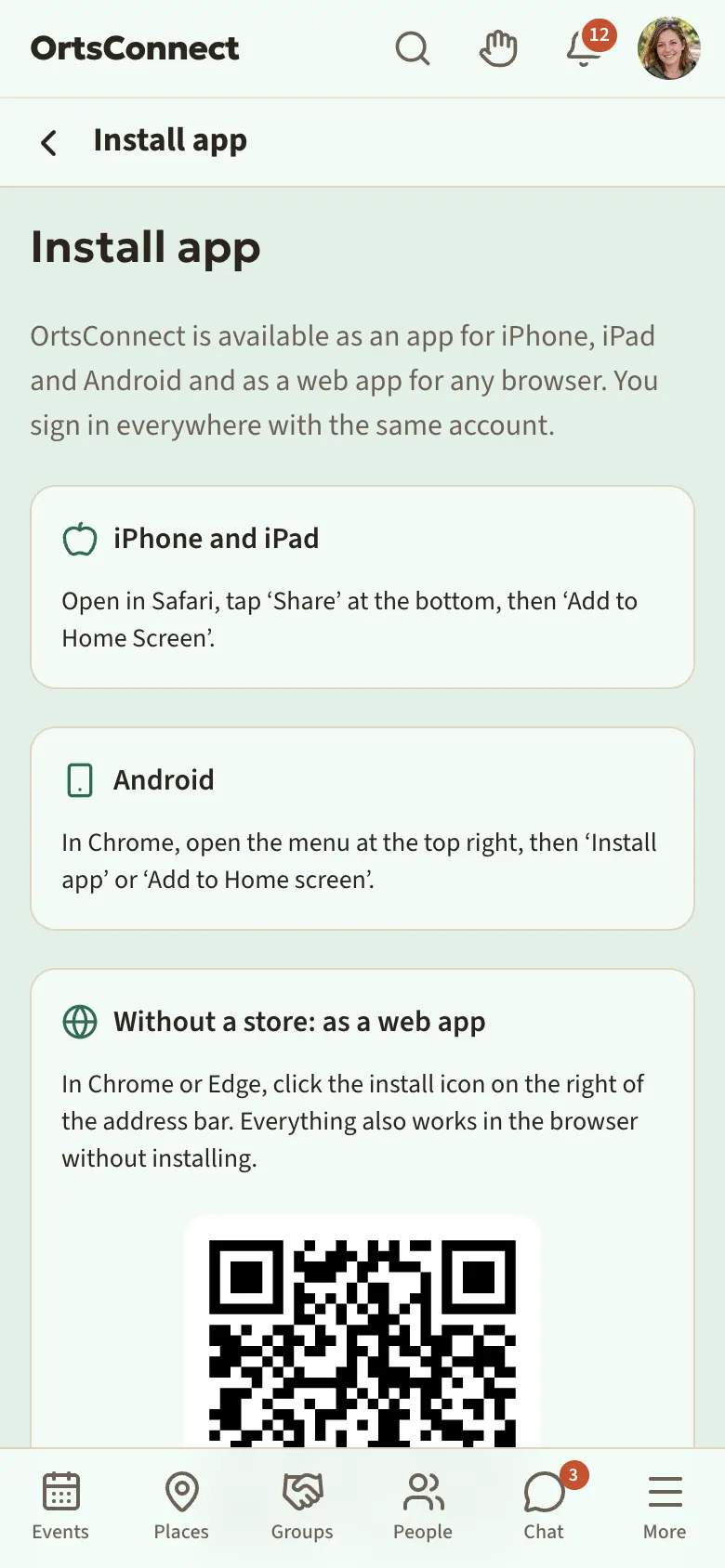
By hand on an iPhone:
- Open DettingenConnect in the Safari browser.
- Tap the share symbol at the bottom (square with an arrow pointing up).
- Tap ‘Add to Home Screen’.
- Tap ‘Add’.
By hand on an Android phone:
- Open DettingenConnect in the Chrome browser.
- Tap the three dots at the top right.
- Tap ‘Install app’ or ‘Add to home screen’.
Tip: On an iPhone you only get notifications on your phone if you have put DettingenConnect on your home screen first.
The app from the app store
If your community also offers DettingenConnect in the App Store or on Google Play, you can download it there. It works just the same as in the browser. In the app, notifications on your phone arrive automatically as soon as you allow them.
App lock with Face ID or fingerprint
In the app from the store you can lock DettingenConnect as well. The app then asks for Face ID or your fingerprint when you open it and after one minute in the background.
- Open Settings › Security.
- Under App lock, turn on Lock with Face ID or Lock with fingerprint.
The lock only applies to this device. If the app is locked, tap Unlock. There's no app lock in the browser.
3. How the app is laid out
The header at the top
At the very top of every page you'll see the same bar:
- On the left your community's logo. Tapping it always takes you back to Home, your personal overview.
- Magnifying glass: opens Search.
- Status: a small symbol you use to set your status, for example Up for a chat (see ‘Your status’ in chapter 8). It appears as soon as you can be found in People.
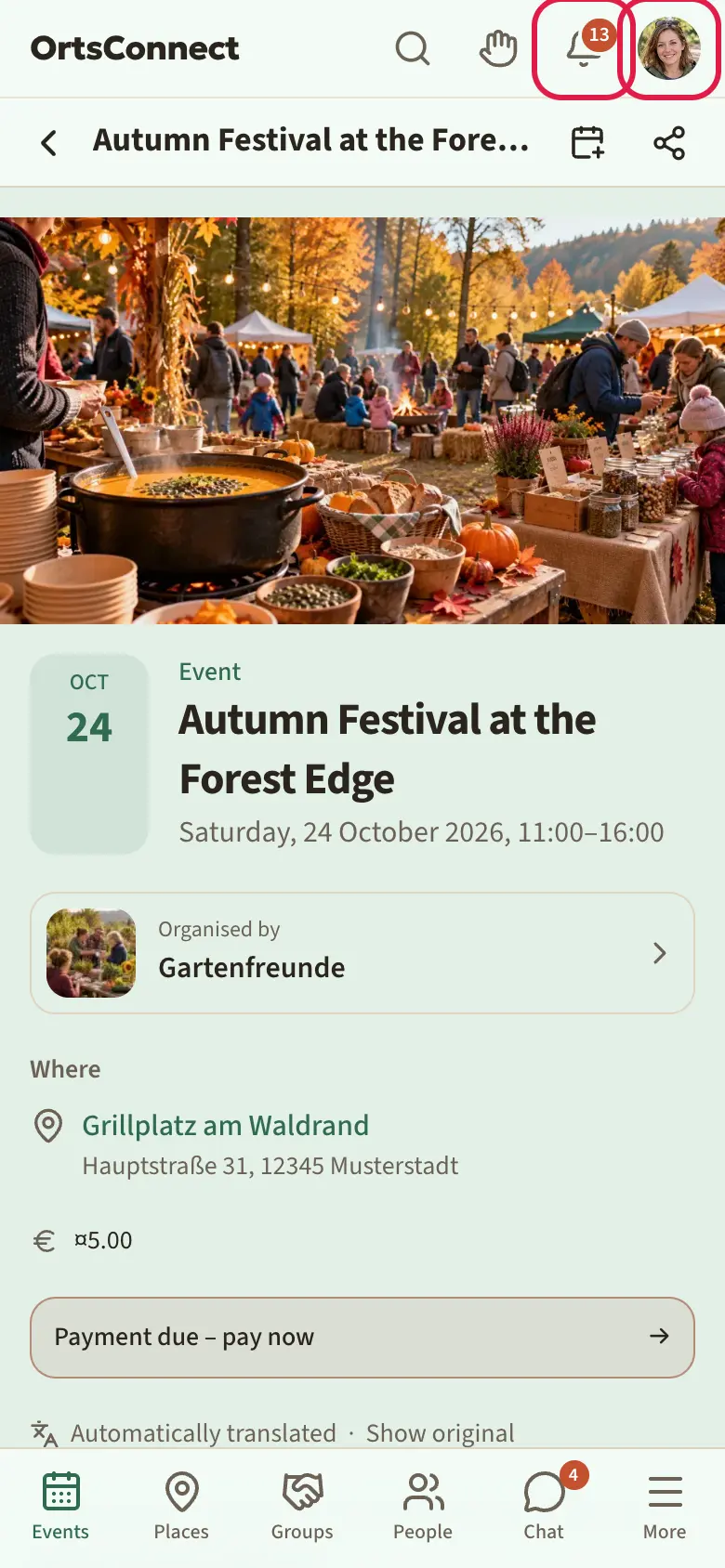
- Bell: your Notifications. A number shows how many are new.
- On the right, your photo or your initial: the avatar menu.
If you're not signed in, on the right there's a circle with a question mark for signing in and, if your community offers several languages, a flag for the language.
Below it is the page header with the name of the page. On sub-pages you'll see an arrow pointing left on the left. Use it to go Back. On the right of the page header there are sometimes small symbols, for example for sharing.
The bar at the bottom
At the bottom of the screen you'll always see six items:
- Events – what's on, when and where
- Places – places where people meet: halls, function rooms, clubhouses, squares, cafés and restaurants
- Groups – hobby groups: local people who meet up and do things together
- People – people who share your hobbies
- Chat – your messages
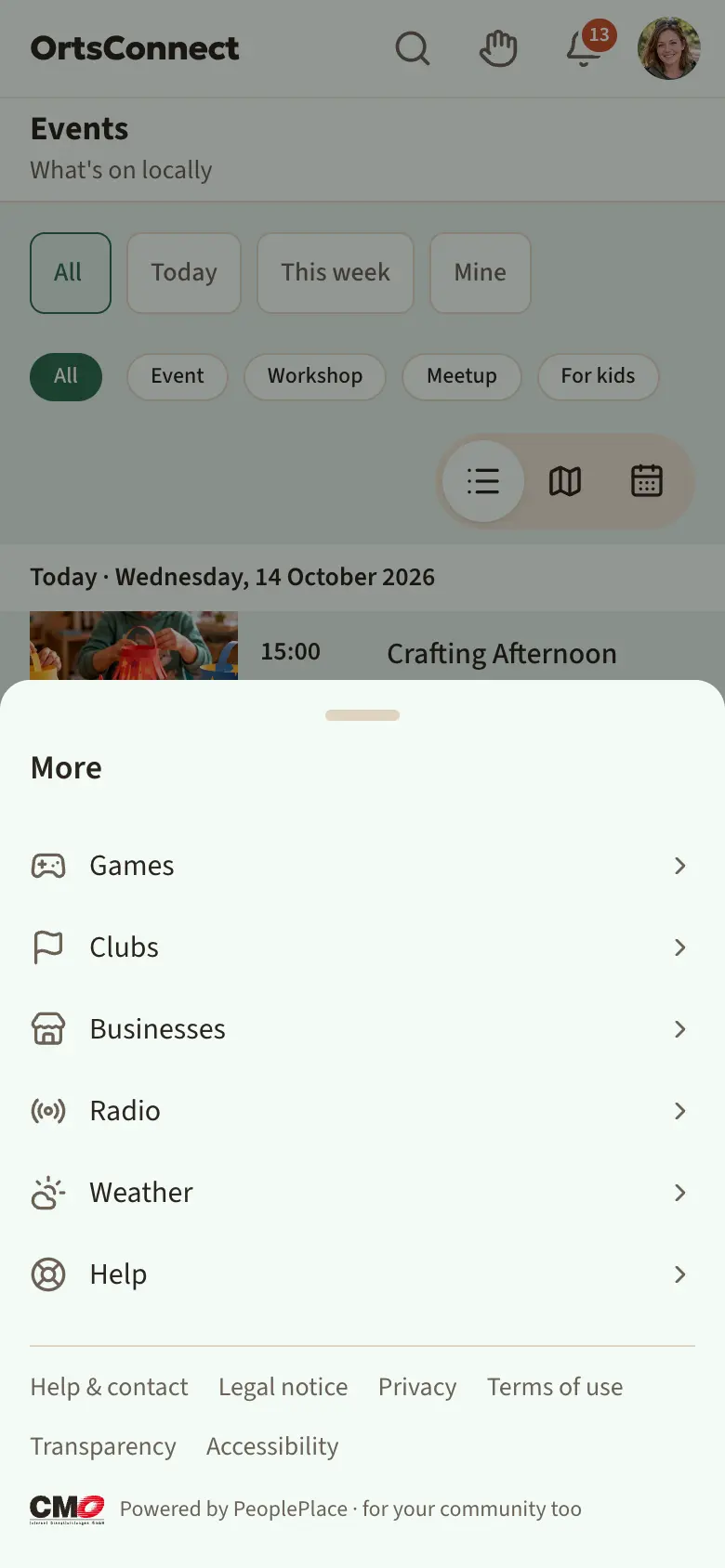
- More – Clubs, Businesses and Help, and depending on your community also Games, Weather, Radio or Support us. At the very bottom are Help & contact, Legal notice, Privacy, Terms of use, Transparency and Accessibility.
Your personal pages such as My profile or My tickets aren't under More but in the avatar menu at the top right.
Small coloured numbers show you where something new is waiting for you, for example unread messages in Chat or new requests in People.
Good to know: At the very bottom of every page there are also links to Help, Help & contact, the legal texts and What's new, and in the browser also Install app.
On a computer, instead of the bar at the bottom you'll see a bar on the left-hand edge with search, Home, the same sections and More. Status, bell, language and your avatar menu (with your name) are in a separate header bar at the top.
The avatar menu
Tap your photo or your initial at the top right. A small menu with your name opens:
- at the top your personal pages: My profile, My tickets, Payments & receipts and, depending on your community, Plus and My points; if you have a key for a room, also My keys
- Settings – your account, security, notifications, privacy and more (chapter 10)
- What's new
- Dark or Light – switches the appearance straight away
- Language, if your community offers several languages
- the links to Help & contact and the legal texts
- Sign out
If you're part of your community's team (for example the moderators), there's also an entry here for your tasks. A coloured dot on the avatar then shows that something is waiting there.

Choosing a language
If your community offers DettingenConnect in several languages, you choose the language in the avatar menu under Language, at the very bottom of every page or under Settings › Appearance › Language. With Same as my device, DettingenConnect follows the language of your phone. Your choice applies to your account on all devices and to emails.
The address of a public page starts with the language code, for example /de/termine. If you share a link, it opens for others in their own language.
Good to know: The handbooks are available in every language the app offers.
Searching
- Tap the magnifying glass at the top.
- Type at least two letters.
- The results appear sorted into Events, Places, Organisations and People.
- Tap a result to open it.
Notifications in the bell
Tap the bell at the top. Here you'll find everything that's new for you: bookings, reminders, new posts, requests and more. Tap an entry to go straight there.
New entries are highlighted in colour and marked New. As soon as you open the bell, everything counts as read. With Remove read you tidy up the list; otherwise entries stay for 90 days.
Refreshing
Pull a page down from the top with your finger to reload it. At the top you'll see Pull to refresh, then Release to refresh.
4. The Home section
In the Home section, DettingenConnect greets you with ‘Hello’ and your name. Below that you'll find everything that concerns you right now. You can get here at any time by tapping the logo at the top left.
Who's online right now
To the right of the greeting, a green dot shows how much is going on right now, for example online 12 / 30: the first number is the signed-in members, the second is everyone who's on the site right now, including guests. The number changes live. Names are never shown there, and people who hide their online status in the chat are only counted.
Three buttons to get involved
Below the greeting there are three buttons:
- I'm out and about – you choose the place where you are right now and check in there (see ‘Checking in: I'm here now’ in chapter 8)
- Free now – sets your status, for example Up for anything
- Start a group – start your own hobby group
Tiles at the very top
Below that there are small tiles when something is waiting for you. For example:
- Profile … % complete – a ring shows how complete your profile is, and below it is what's missing next (for example ‘Next: Hobbies’). With What's still missing? you see all the points. If you haven't set up your People profile yet, the tile takes you there. It stays until your profile is complete.
- new requests to get to know you
- Join requests, if you run an organisation and someone wants to join
- Add your date of birth or Add where you live, if that's still missing
Tap a tile to go straight to the right page.
The sections
Then come these sections:
- Happening now – what's happening today: who's checked in somewhere right now, who's going where today and what people have just done, for example ‘is new here’, ‘has a new profile picture’, ‘is often here: …’ or ‘has filled in 50% of their profile’. The three most recent check-ins are shown here; if there are more, … others are out somewhere takes you to the full list. There, Sort by distance sorts by your location, which only your device knows.
- Who's going where – who from the area is going to later events or is looking for company. With I'll come along you book straight away, and the people shown find out. You only see events for a particular age in both sections if you or one of your children fits; the button is then called, for example, Sign up Maik.
- After that, depending on your community, the Weather for the next few days (tapping it opens the Weather page with rain radar and warnings) and My organisations: the organisations you're part of or follow, as a bar you can swipe. At the end, Discover takes you to more.
- Your upcoming events – your bookings and your groups' events.
- This week locally – all events in the next seven days, by day. All events this week takes you to the full list.
- For you – suggestions that suit you: people as tiles (with the reason, such as ‘also Gen X’), events for your children (‘For Maik (10)’) and calls such as ‘4 people here also have photography as a hobby. There's no group yet.’ with Start a group. If you start it, the others find out as soon as the group is approved.
- New in the app – new places, new organisations and news.
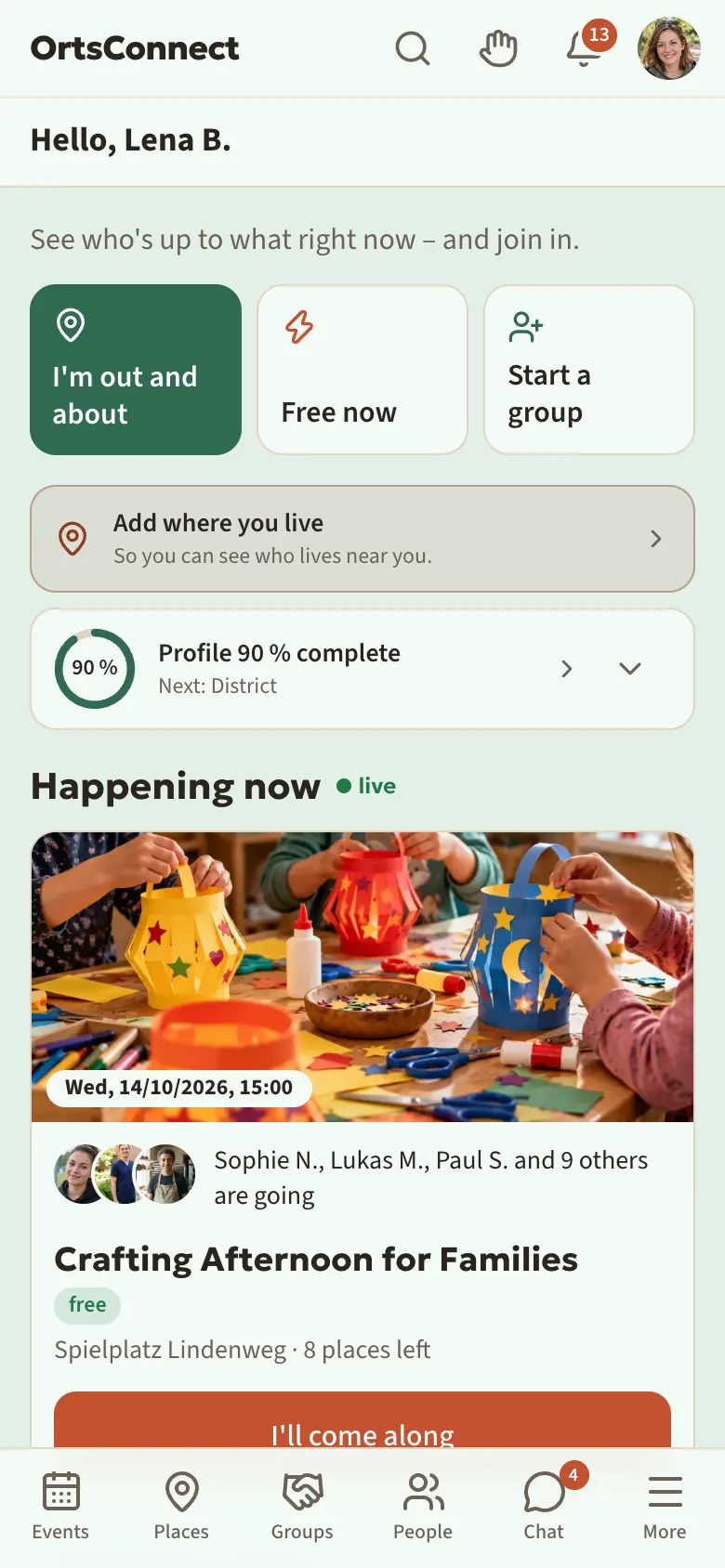
Tip: If it says It's quiet here for now, follow a few organisations or join groups. Then your Home section fills up.
Places near you
At the very bottom of Home, if your community has switched it on, there's the tile Show places near you. Tap it. Your phone asks whether DettingenConnect may use your location. If you allow it, you'll see the nearest places with their distance.
Good to know: Your location is only used on your phone. It isn't sent and isn't stored.
5. Events
Finding events
Tap Events at the bottom. You'll see the upcoming events sorted by day.
At the top you can choose:
- All, Today, This week or Mine (events you've booked)
- the type: Event, Workshop or Meetup
- For kids
Tap a choice again to clear it.
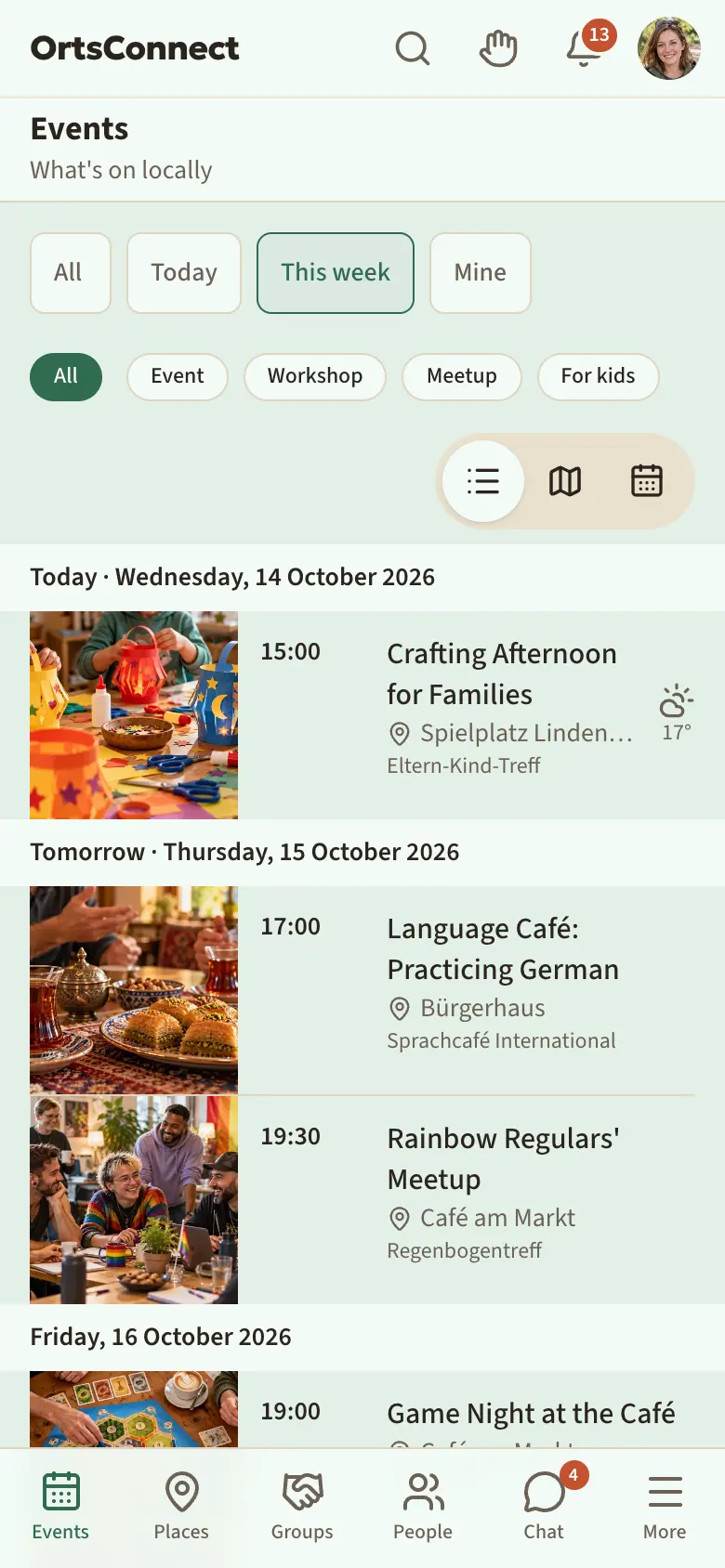
List, map or month
At the top right above the list you can switch the view:
- List – all events one below the other
- Map – the places where events take place, on a map
- Month – a calendar page. Days with events are highlighted and show the number. Tap a day to see its events. Use the arrows to go to the previous or next month.
Looking at an event
Tap an event. On the event page you'll see:
- type, title, day and time
- Where the event takes place. Tap the place to find out more about it. For online events it says Join online.
- the price or free
- how many places there are and how many are already taken
- the Organiser – tap it to open the organisation
- the description
- for regular events: More dates in this series
- depending on your community, for events in the next few days the Weather at the time of the event, with a warning for severe weather
If an event has been cancelled, it says This event has been cancelled. at the top, often with a reason.
What does ‘Room to follow’ mean?
Sometimes an event says Room booking: Room to follow. This means: the event is planned, but the room can only be firmly booked later. DettingenConnect requests it automatically as soon as that's possible. If that doesn't work out, the event is cancelled and you're informed if you've booked.
Booking
- Open the event.
- In the box with the number of bookings (for example ‘12 of 20 places taken’) you'll find the Join button. If several people can book at once, enter the number of People first.
- Tap Join.
- The box now says You're going, with the Cancel button next to it.
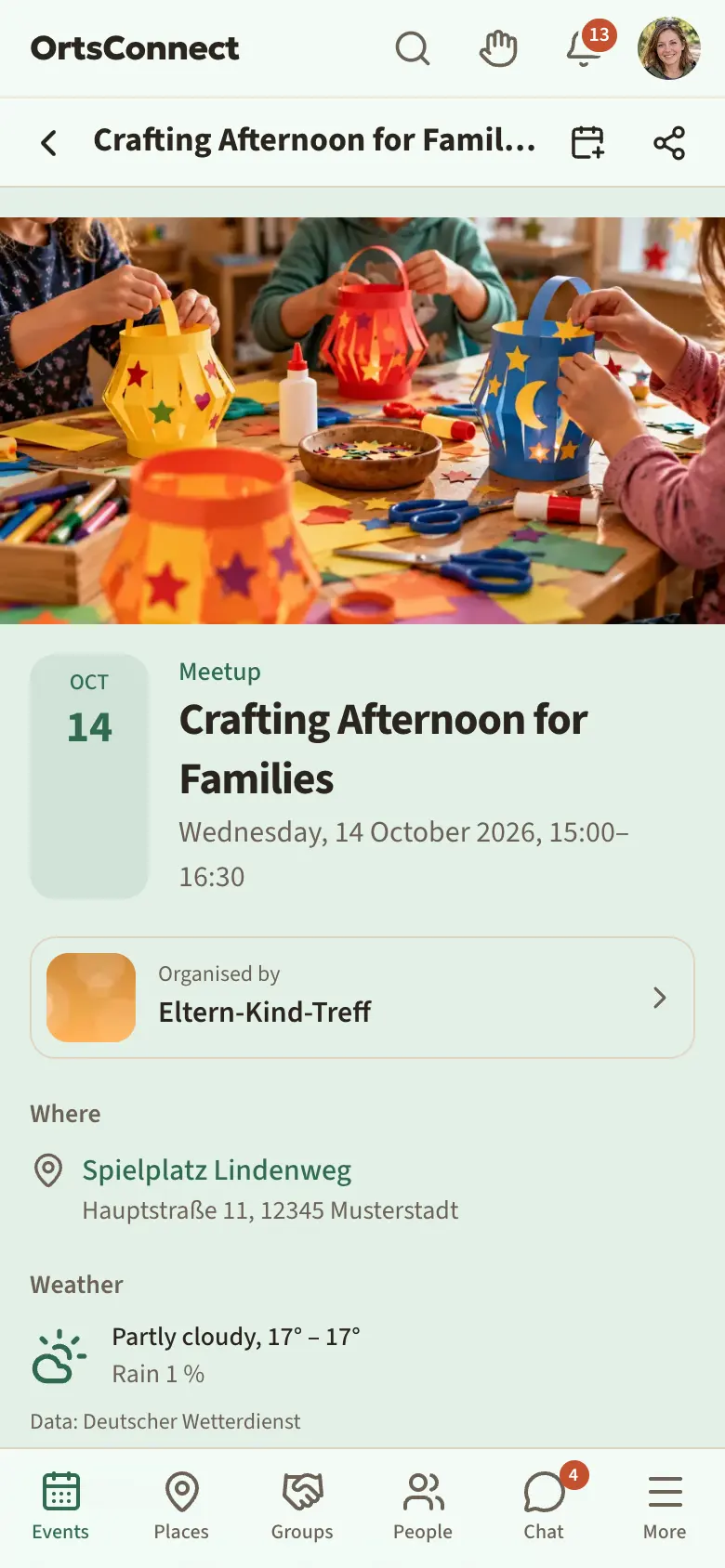
If you're not signed in, it says Sign up for free and join.
Good to know: Some events have a booking window. Then you'll see Booking isn't open right now. or Booking is closed for this event.
Cancelling
- Open the event.
- In the box with the bookings, tap Cancel.
Some organisers only allow cancellations until shortly before the event. If the deadline has passed, please contact the organisation's organisers.
Waiting list
If an event is full, the box says Join waiting list.
- Tap Join waiting list.
- The event page then shows your position on the list.
- If a place becomes free, you get a notification: A place is free!
- Open the event and tap Accept place within 24 hours.
If you don't accept the place in time, it goes to the next person.
Reminders
When you book, you get a confirmation straight away – for events with tickets, with your ticket code. DettingenConnect reminds you of the event 1 day and 1 hour before it starts. If an event is changed or cancelled, you'll be told as well.
Good to know: If your community offers Plus, with Plus you can choose yourself under Settings › Notifications › Event reminders when you're reminded, for example 1 week before or 15 minutes before.
Tickets
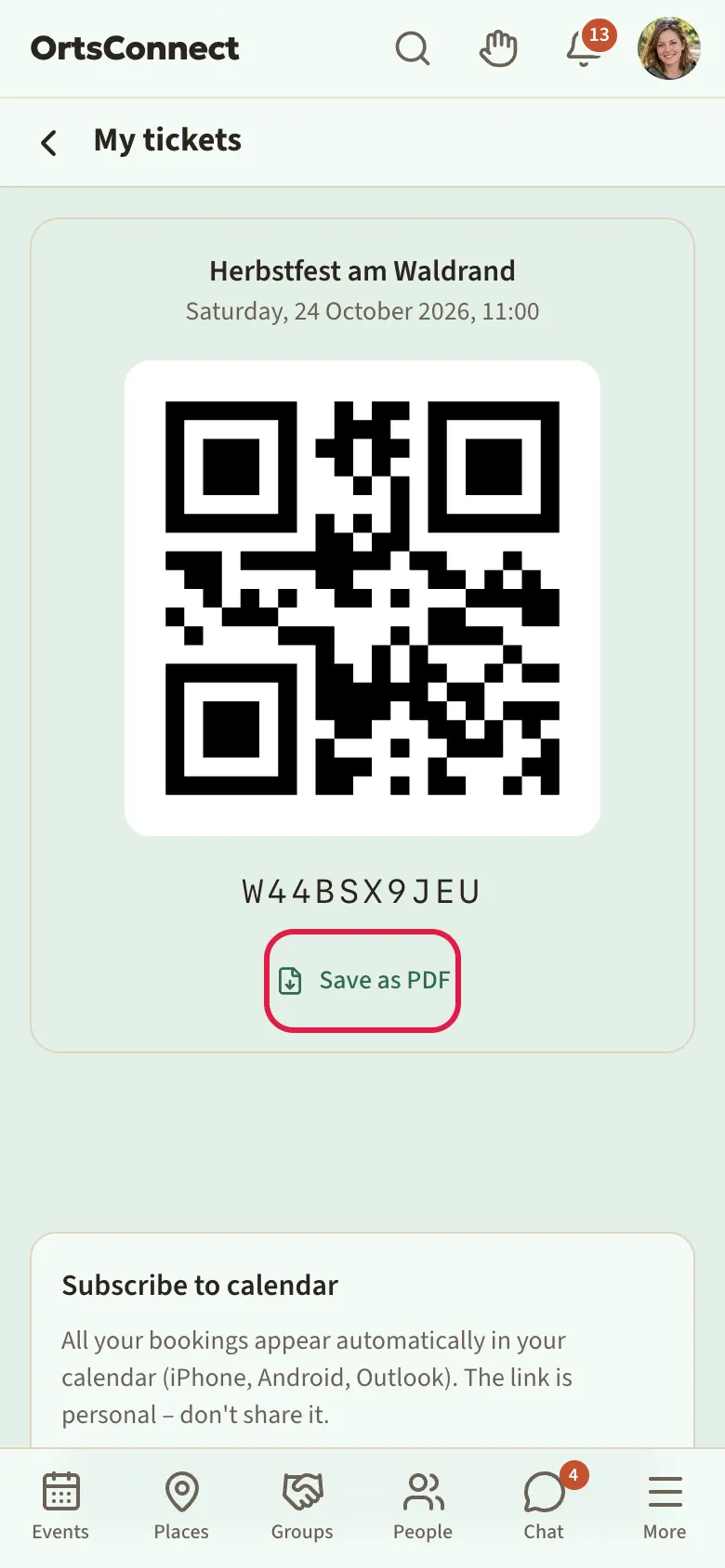
Some events have tickets with a QR code. After you book, you then get a ticket automatically.
- Tap your avatar at the top right and then My tickets.
- You'll see the QR code for every upcoming event.
- Show the QR code at the entrance.
If you want to print or save the ticket, tap Save as PDF.
Paying
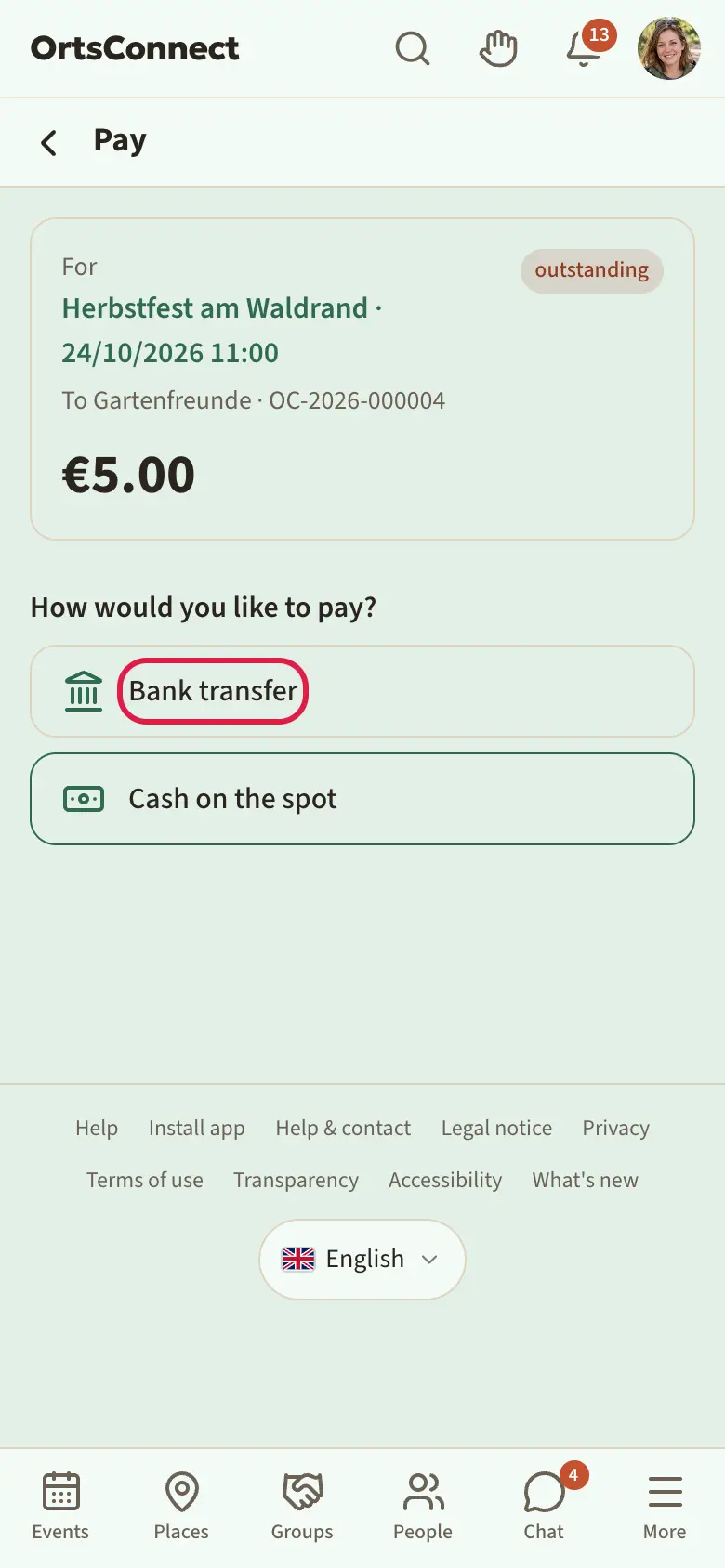
If an event costs something, after booking you'll see: You're going. Please choose how you'd like to pay. Your place is reserved immediately.
- The Pay page opens. It says: How would you like to pay?
- Choose a payment method. The organisation decides which are available:
- Cash on the spot – You pay at the event. The organisers confirm it at the entrance.
- Bank transfer – You'll see Recipient, IBAN and Payment reference. Use Copy to transfer the details to your banking app. Make the transfer by the date shown there.
- PayPal – You're taken to PayPal and come back afterwards.
- If you want to change the payment method, tap Other payment method.
Good to know: With bank transfer and PayPal, DettingenConnect only holds your place until the deadline given. Shortly before, you get a reminder. If nothing has been paid by then, the booking is cancelled and the place becomes free.
Once the payment has arrived, it says Paid on …. Thank you!. With Receipt as PDF you download your receipt.
On the event page you'll always see Payment due – pay now or Paid – view receipt. You'll find an overview of all payments in the avatar menu under Payments & receipts, split into Outstanding and Completed.
Adding an event to your own calendar
- Open the event.
- Tap the calendar symbol (Add to calendar) at the top of the page header.
- Your phone opens the calendar app. Confirm adding it there.
All bookings automatically in your calendar
With a calendar subscription, all events you've booked appear in your calendar by themselves. New bookings are added. If you cancel yourself, the event disappears again.
- Tap your avatar at the top right and then My tickets.
- Scroll right down to Subscribe to calendar.
- The first time, tap Create subscription link.
- Tap Subscribe in calendar app. Your phone opens the calendar app. Confirm the subscription there.
- If that doesn't work, tap Copy subscription link and paste the link into your calendar app as a new subscription.
Good to know: The subscription link is personal. Don't pass it on. If you have shared it after all, tap Generate new link (old link will stop working). The old link then no longer works, and you set up the subscription again with the new link.
Sharing an event
Tap the share symbol (Share) at the top of the page header. You can then send the event on, for example by messenger or email.
Photos at the event
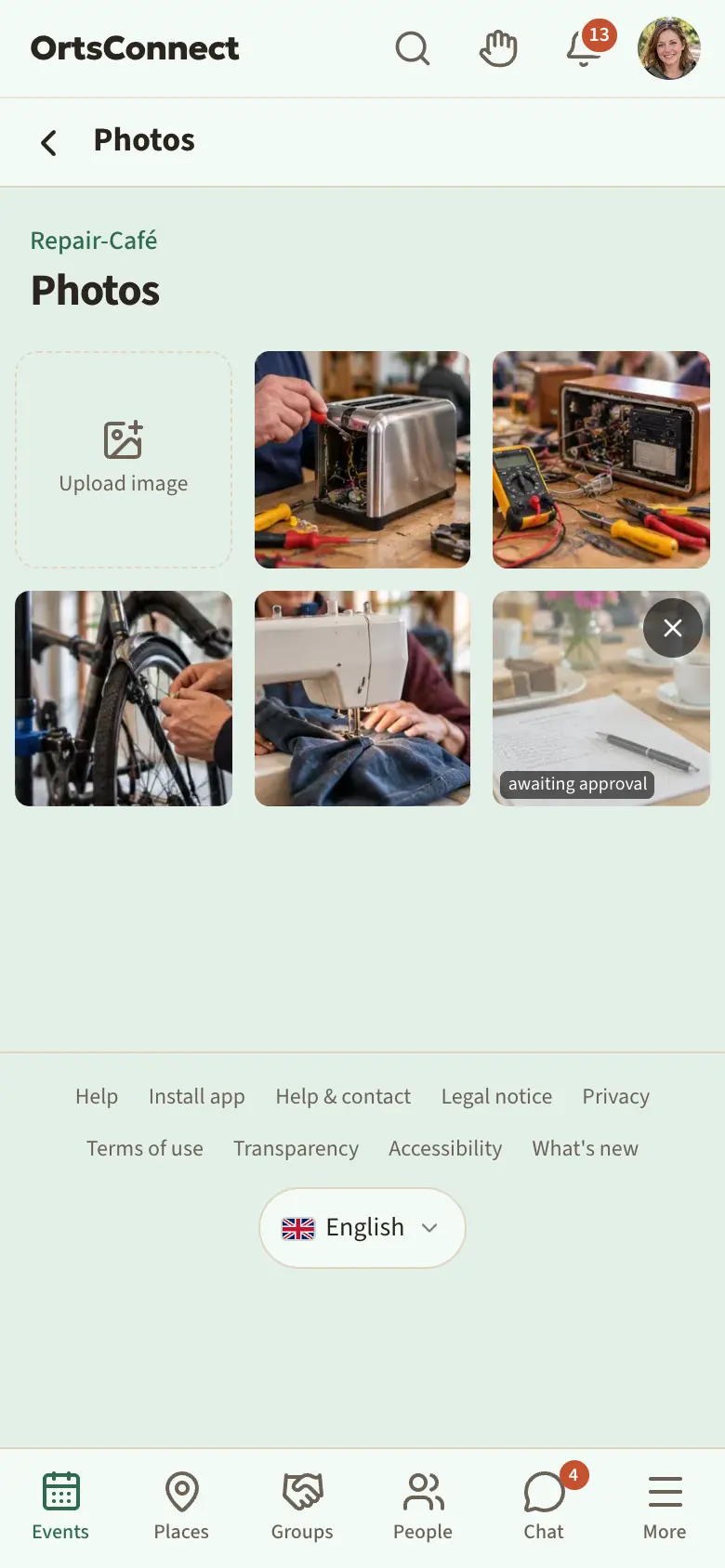
At some events, the participants can show photos. From the start of the event, View photos → appears on the event page.
- Tap View photos →.
- Tap a photo to see it large.
- If you were there, you can add a photo yourself: tap the Upload image field and choose a photo.
Sometimes the organisers only show photos after checking them. Your photo then says awaiting approval. You can delete your own photos again with Remove.
6. Places and businesses
Finding places
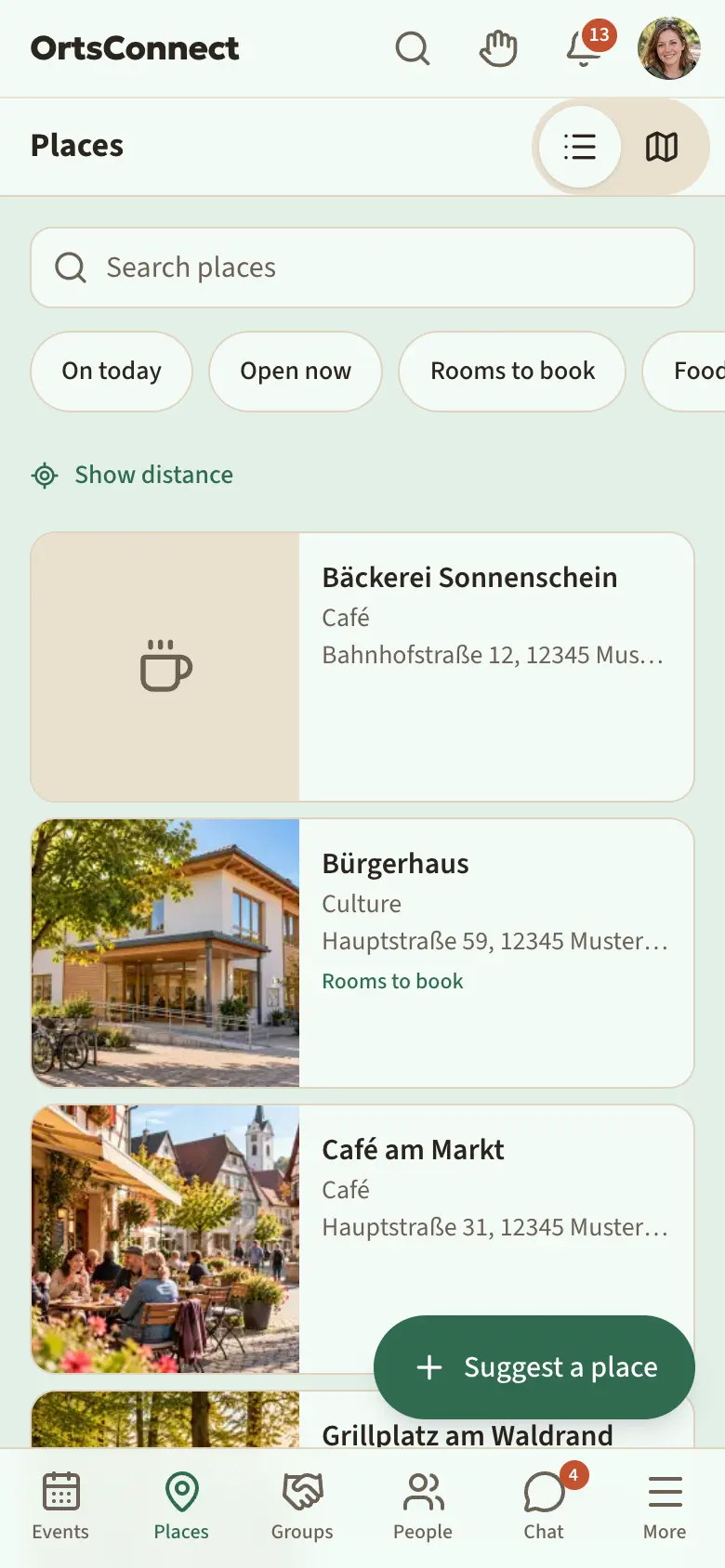
Tap Places at the bottom. You'll see the places where people meet and spend some time: halls, function rooms, clubhouses, public squares, cafés and restaurants.
Use the Search places field to find a place by name. Below it you can choose:
- On today – places with events today
- Open now
- Rooms bookable
- broad areas such as Food & drink, Shopping, Sport, Culture, Public and Meeting point
Tap Show distance if you want to see how far away the places are. Your location stays on your phone.
Use the List and Map symbols to switch between the list and the map.
Looking at a place
Tap a place. Depending on the place, you'll see:
- Run by – the business or organisation it belongs to
- Meet here – clubs and groups that usually meet here
- the business's Offers
- ‘Here now: … until …’ – which event is taking place at this moment
- Here now – who's checked in here right now, and the I'm here now button (see chapter 8)
- Often here – who comes here often, and the I'm often here button (see below)
- What's on here – the next events at this place
- Opening hours with Open until … or Closed
- Rooms with the number of seats
- Facilities, Contact, Gallery and Floor plan
At the top of the page header you'll find Directions (opens the route in your maps app) and Share.
Good to know: Some contact details are only visible to signed-in users.
I'm often here
If you often go to a place, for example a café or the clubhouse, tap I'm often here there. It then says You're often here, and others see you under Often here, for example ‘12 people are often here’. Your profile lists the place under ‘Often here’, and ‘is often here: …’ appears in Happening now. Places you share also count towards the suggestions under For you.
Everyone signed in who can find you in People sees this. There are no times and no location. Tap again to take it back. I'm often here only works if you can be found in People.
Looking at rooms
On the place's page, tap a room. You'll see photos, size, places and, under Occupancy, when the room is free, requested or booked this week. Use the arrows to go to the Previous week or Next week.
Rooms can be booked by the organisers of organisations. How that works is explained in the Handbook for club organisers.
Suggesting a place
Is a public square or meeting place missing? At the bottom of the list of places, tap Suggest a place and fill in the form. The moderators will review your suggestion.
Businesses
You'll find shops, workshops, restaurants and service providers under More › Businesses. At the top you can filter by sector or search for a name with Search businesses. A business is an organisation; its page looks like a club's page (chapter 7).
A business's page has the Location block with the address, Directions, ‘Open until …’ or ‘Closed’, the opening hours and the closing days. If the business is also a place, for example a café, To the meeting point takes you to its page under Places.
If there's a note saying ‘This business doesn't manage its listing itself yet. All details come from public sources …’, nobody looks after the business in DettingenConnect yet. If you work there, you can still tap I work here. It then says Requested for you until someone takes over the business and confirms you.
If you have a business of your own, tap Add a business under More › Businesses. How to add or take over a business is explained in the Handbook for places and businesses.
Is this still right? Keeping the details up to date
Has a place been rebuilt, got a new name or changed its opening hours? Let us know, and the app stays up to date. You can do this at every place and in a business's Location block.
- Tap Something not right?. If you're not signed in, it says ‘Something not right? Sign in and let us know’.
- Under What's changed?, choose: Permanently closed, Has a new name, Opening hours, Address or location, Phone, email, website or Other.
- Enter the correct details. The current ones are already filled in; you only change what's wrong. For Other, briefly write what's wrong.
- Tap Send tip.
The tip goes to the people who look after the entry, otherwise to the moderators. The moderators always get Permanently closed as well. They apply your correction or reply with It's correct. Either way, you'll be told.
Sometimes the app asks by itself Is this still right? if nobody has checked the details for a while. Tap Yes, it's right if everything is fine, or Something's changed.
Good to know: If your community has points, you get 5 points for a correction that's applied and 1 point for Yes, it's right.
7. Organisations
Organisation is the umbrella term for groups, clubs, initiatives, businesses and the council. They appear in three places:
- Groups (in the bar at the bottom) – hobby groups: local people who meet up and do things together
- More › Clubs – clubs and initiatives in the area
- More › Businesses – shops, restaurants and service providers (chapter 6)
Finding groups
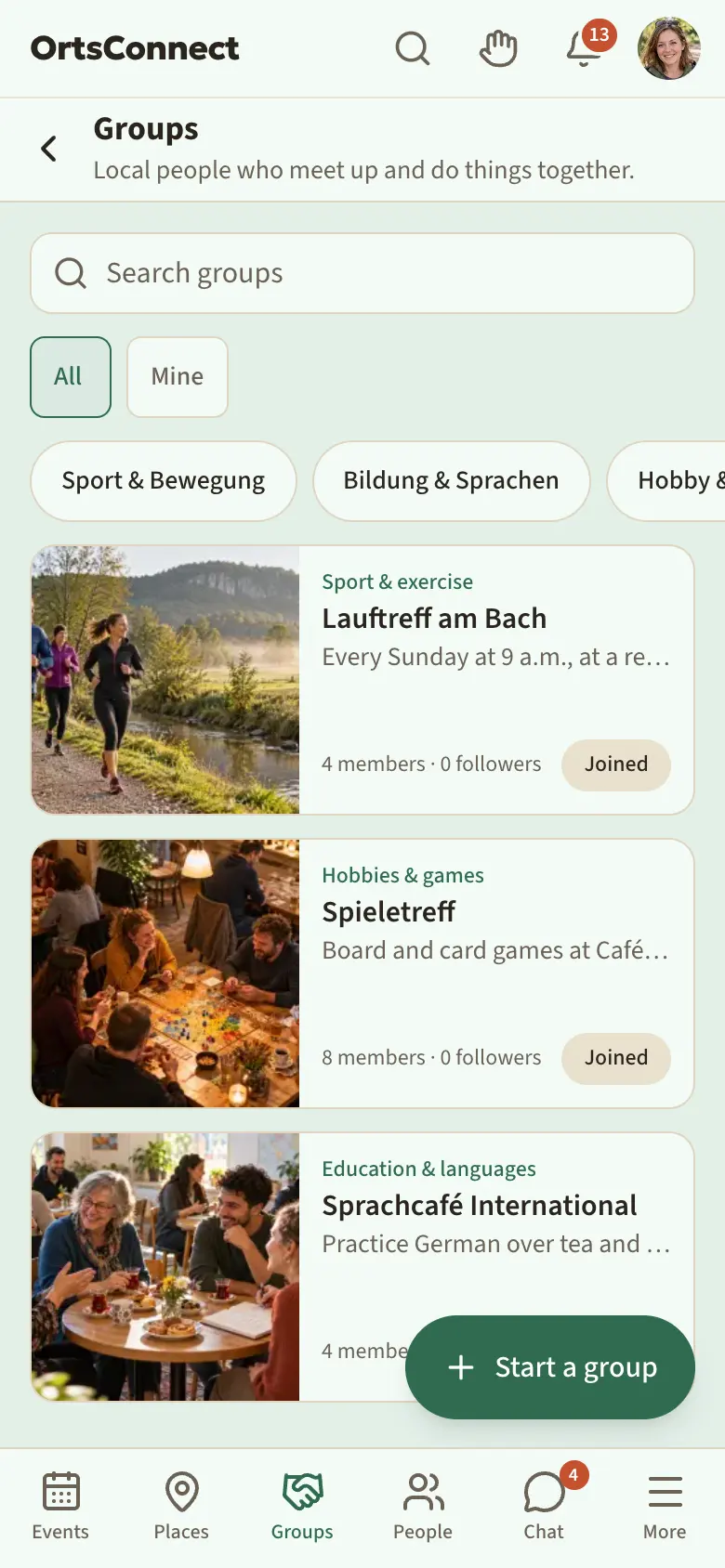
Tap Groups at the bottom.
- At the top, choose All or Mine. Mine lists everything you belong to or follow, including clubs and businesses.
- Use the buttons below to narrow the list down by area. Tap again to clear the choice.
- Or type a name into the Search groups field.
Is there no group for your hobby? Tap Start a group at the bottom. How that works is explained in the Handbook for club organisers.
Finding clubs
Tap More at the bottom and then Clubs. At the top, choose an area or search for a name with Search clubs. Some clubs are already in DettingenConnect before they take part themselves; their details then come from public sources. If your club is missing, tap Add a club.
Looking at an organisation
Tap an organisation. At the top you'll see the photo, logo, type, number of members and how many people follow it. Below that there are three tabs:
- Overview – description, age group, Places & rooms, Contact, Links and Rules, and for businesses the Location
- Posts – the organisation's announcements
- Members (Team for businesses) – the member list. Only members can see it.
Overview also shows the organisation's place with Here now and Often here, just like on the place's page (chapter 6).
View events → takes you to all of this organisation's events. With Local people → you see who belongs to it and shows that on their profile.
If it says Seasonal break until …, the organisation is taking a break at the moment. You can still follow it and belong to it.
Following – and the bell
If you follow an organisation, you'll see its events and public posts on your home page. Following doesn't make you part of it.
- Open the organisation.
- Tap the star symbol (Follow) at the top of the page header. The star fills with colour.
- A bell now appears next to it. Tap it if you also want a notification on your phone about news from this organisation (Notifications on). Tap again to turn it off (Notifications off).
To unfollow, tap the star again (Unfollow).
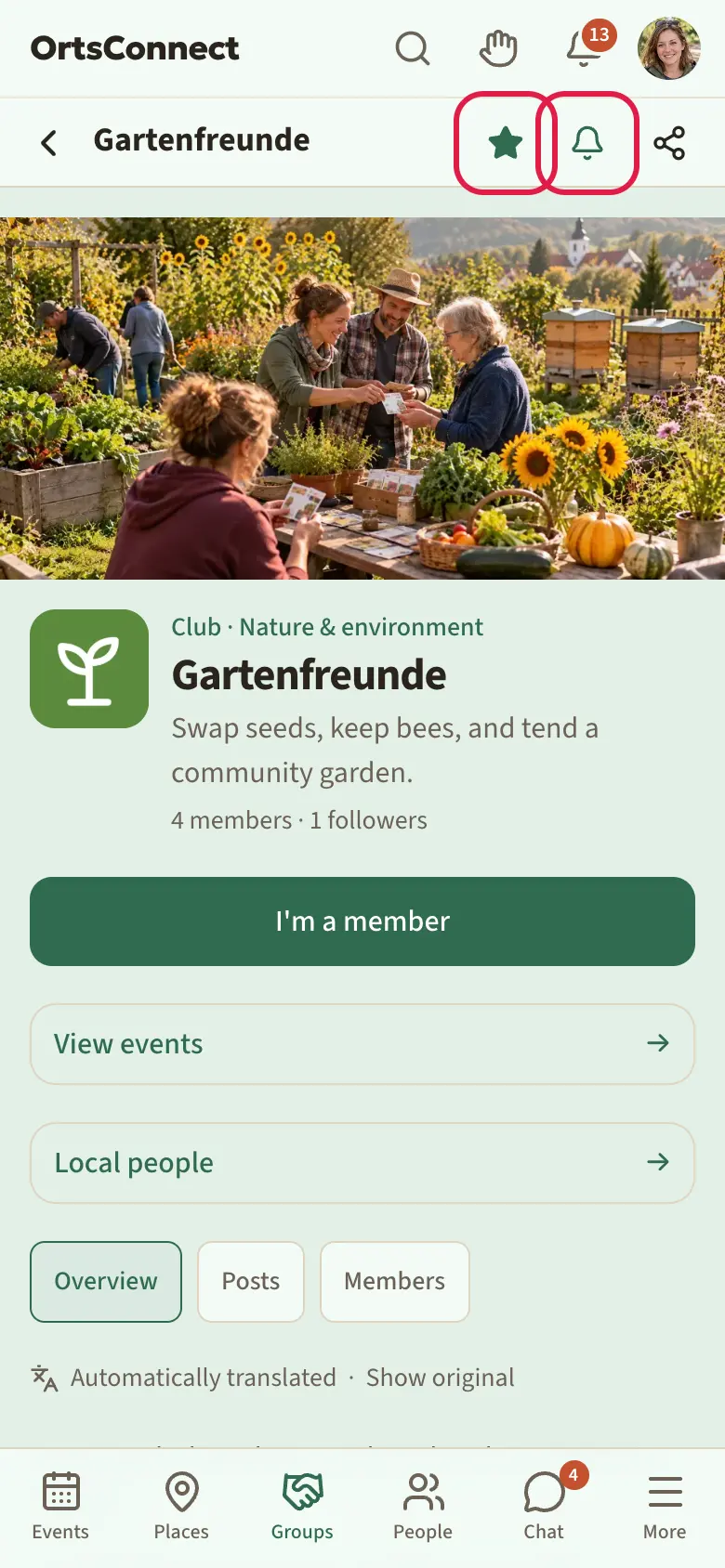
Good to know: Without the bell, news only lands on your home page and in the bell at the top of the app. Only with the bell turned on do you also get notifications on your phone.
Belonging: Join in, I'm a member, I work here
You can follow any organisation. If you really belong to it, you show this with a button whose name depends on the type:
- I'm a member for clubs
- I work here for businesses and the council
- Join in for hobby groups, initiatives and everything else
- Open the organisation.
- Tap I'm a member, I work here or Join in.
- If the organisation has rules, read them and tick I've read the rules and will follow them.
- Tap the button in the window again.
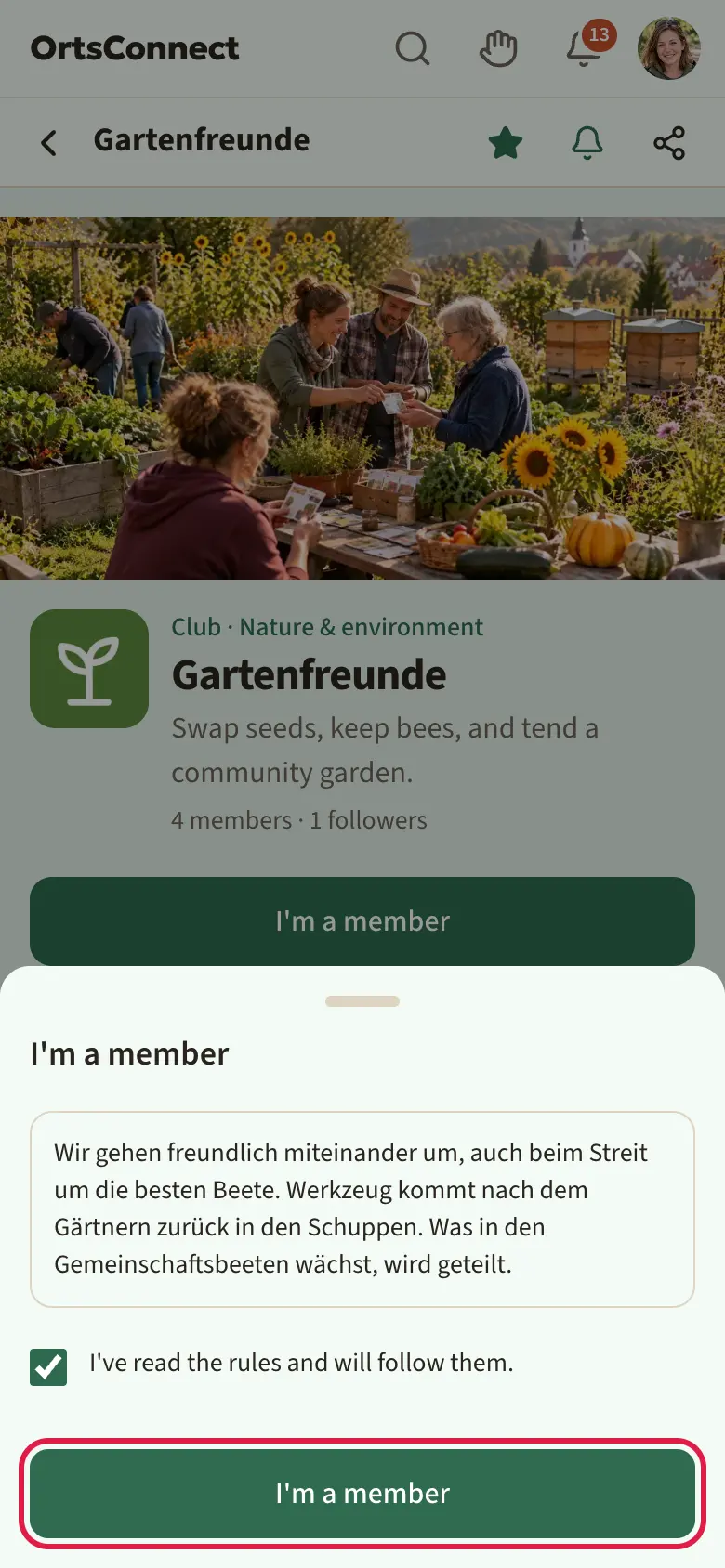
- For clubs, businesses and the council, the organisers always confirm that you really belong: The organisers confirm this before it appears on your profile. Until then it says Requested. With Requested · Withdraw request you take the request back.
- For hobby groups and initiatives, the organisers decide whether you're in straight away (Welcome! You're in.) or whether they confirm first.
- Some organisations only accept people by invitation. Then there's no button, just a note.
- If you belong, you don't follow as well: if you were following before, belonging replaces following. In the list of organisations, the card then says Joined, Member, Team or Requested.
Good to know: Some organisations are for particular age groups. If your date of birth is missing, the app asks for it first when you join: you enter it once, tap Continue and then join. If your age is outside the range, instead of the button it says This organisation is for a different age group. – you can still follow it. If it says Children and young people can only take part with an accompanying adult., this applies to under-18s.
Joining with an invitation link
If you've received an invitation link from an organisation, tap it. The Invitation to … page opens. If the organisation has rules, read them and tick I've read the rules and will follow them. Then tap Accept invitation. If you're not signed in, it says To join, you need an account. Then tap Sign up now or Sign in; afterwards DettingenConnect takes you back to the invitation.
As a member
As a member you'll see on the organisation's page:
- the Group chat button – it opens the shared chat
- all members in the Members tab; with Message you write to someone directly
- in the Posts tab, also the posts that are for members only
If the organisation changes its rules, The rules have changed. Please confirm them. appears. Then tap Confirm rules.
Leaving
- Open the organisation.
- Scroll down in the Overview tab.
- Tap Leave.
How to start and run an organisation yourself is explained in the Handbook for club organisers.
8. People
In the People section you'll find people who share your hobbies – for doing things together, for courses or simply to meet someone new. With your account, you can be found there. If you don't want that, turn it off under Settings › Privacy (chapter 10).
Setting up your People profile
The first time, you set up your profile on a single short page. It takes about a minute.
- Tap People at the bottom.
- Tap My People profile at the top right. The What do you enjoy? page opens.
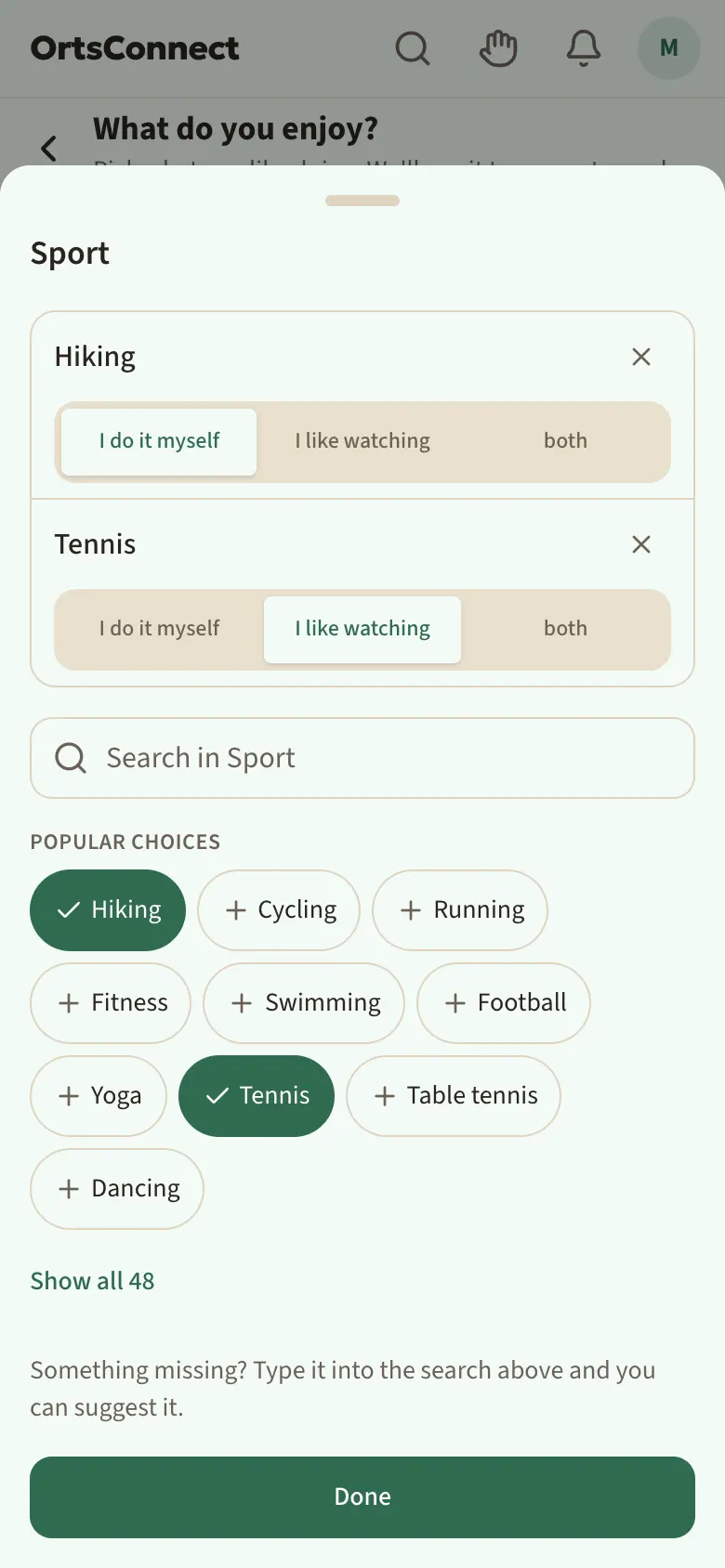
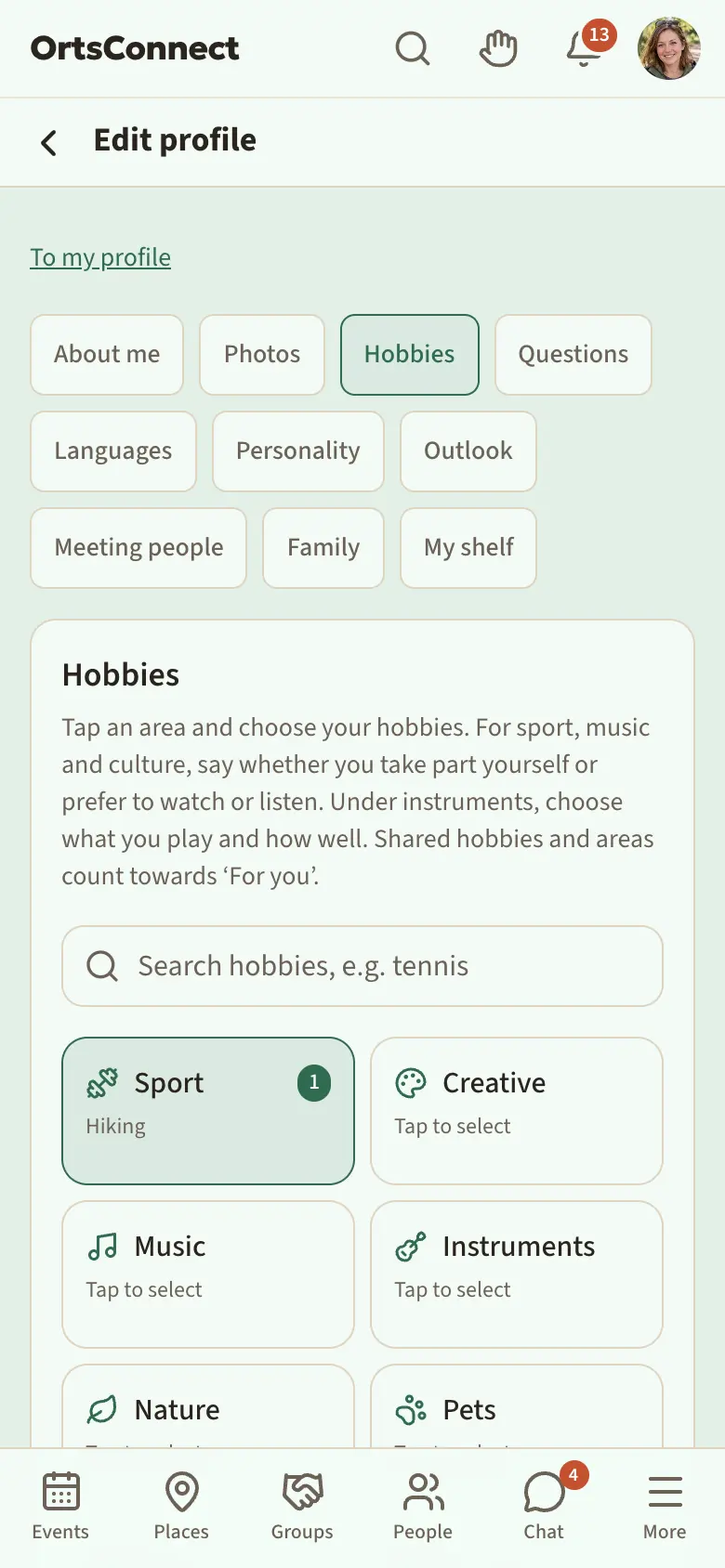
- Choose your hobbies. They're sorted into areas, for example Sport, Music or Nature. Tap an area: at the top are the hobbies you've chosen, below them a search field, Popular choices and Show all …. Tap a hobby to choose it and × to remove it again. Done closes the area. There's no minimum number. It's often quicker with the Search hobbies, e.g. tennis search field at the very top, which searches all areas.
- If a hobby is missing, type it into the area's search field and then tap Suggest ‘…’. Until it has been checked, it says awaiting approval.
- For Sport, Music, Culture, Instruments and Pets, under each hobby you've chosen you pick a level, for example how you do it (see ‘Hobby levels’).
- Enter Where you live (more on this further down under ‘Where you live and ‘Nearby’’). If you like, add:
- a Profile photo via Upload image
- your Neighbourhood, if your community has neighbourhoods and you live in one
- About me – a few sentences about you, 500 characters at most
- Show age: exact – that's the default –, as a decade (e.g. 30s) or don't show. If you show your age, you also show your generation (Baby Boomers, Gen X, Millennials, Gen Z); on your profile, tapping it explains what it means, and the same goes for your star sign
- I'm looking for and Usually free
- You can be found in People – with name, photo, neighbourhood and hobbies. If you don't want that, turn off the Findable in ‘People’ switch under Settings › Privacy.
- Tap Done at the bottom.
After that you go straight to People: All done! Here are people who share your hobbies.
Tip: You can add questions, languages, personality and outlook later. You do that via My profile (at the top of the avatar menu) › Edit profile.
Good to know: Even if you make yourself invisible in People, you can still see the others and get to know them.
Hobby levels
For Sport and Culture you say for each hobby how you do it: I do it myself, I like watching or both; for Music: I play myself, I like listening or both. For Instruments you choose just starting out, play quite well, play very well or used to play, and for Pets have one, used to have one or would like one. In these two areas you can also write a short note for each hobby, for example ‘two tomcats’. The other areas don't have levels.
The level appears in your profile after the hobby, for example ‘Tennis (I like watching)’. For For you, the same hobby counts most, and the same level adds a little more. A shared area without the same hobby also counts a little; then it says, for example, ‘you both like Sport’.
Good to know: You can choose a hobby you've suggested yourself straight away. Others only see it once it has been approved.
Building up your People profile
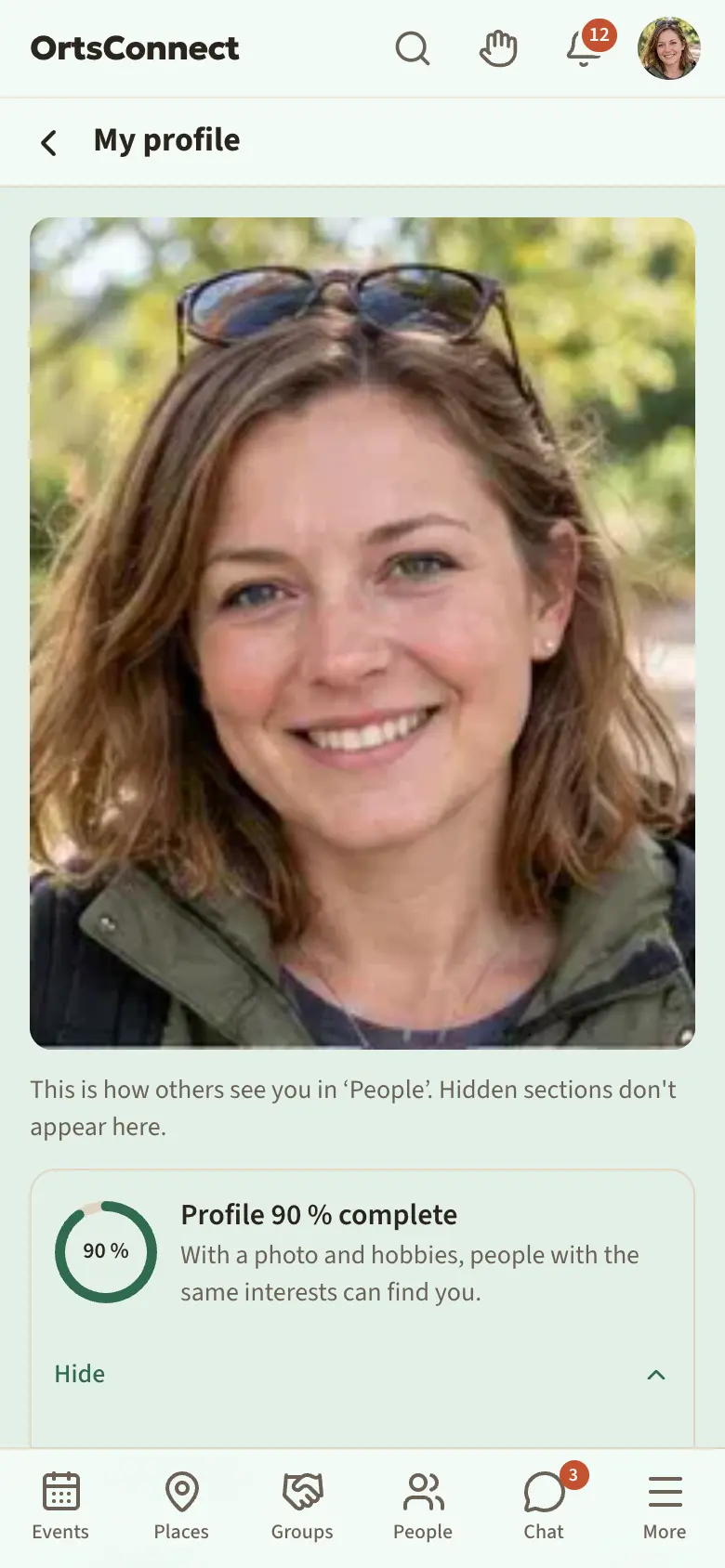
Once your profile is set up, you'll find it under My profile at the top of the avatar menu. My profile shows your profile the way others see it. Edit profile takes you to editing. There are nine tabs there: About me, Photos, Hobbies, Questions, Languages, Personality, Outlook, Meeting people and Family. If My shelf is switched on in your community, there's one more tab after them that leads to a page of its own (see ‘My shelf’). On a phone, swipe the tab bar sideways to see them all.
On My profile, a ring shows Profile … % complete. It counts what helps others find things in common with you: profile photo, hobbies, About me, neighbourhood, What I'm looking for, more photos and languages. Tap What's still missing?: each line takes you straight to the right tab.
Each tab saves on its own:
- Tap a tab.
- Change whatever you like.
- As soon as you've changed something, the Not saved bar with the save button, for example Save Hobbies, sticks to the bottom of the screen (on a phone, above the bar). Tap it.
If you've changed something in a tab and haven't saved it yet, there's a coloured dot next to its name. If you then want to leave the page, DettingenConnect asks: You have changes that are not saved yet. Continue anyway?
Saving works like this everywhere you set something up, for example under Settings › Account or for a gallery; there the button is usually called Save changes. Nothing is saved automatically.
Good to know: When you save one tab, your unsaved changes in the other tabs are kept.
About me – This is what others see first: your Profile photo (via Upload image), Where you live, your Neighbourhood, the About me field, Show age and My connection to …: tick Born here, Grew up here or Work here, and under Lived here use Add period to enter from when to when you lived here – or Still live here. Everything except where you live is optional. Tap Save About me.
Photos – More profile photos and your galleries. This tab has no save button: every change applies straight away. More on this under ‘Your photos’ and ‘Galleries’.
Hobbies – Here you choose your hobbies and their level, just like when setting up. Tap Save Hobbies.
Questions – Up to three short questions that show who you are.
- Under Add question, choose a question, for example I'm happy to help with, My insider tip for the area or I'm looking for people to join me in.
- Tap Add question.
- Write your answer in the field below, 300 characters at most.
- Tap Save Questions.
Use the cross next to a question to remove it again.
Languages – Which languages you speak, including Sign language.
- Under Add language, choose a language and tap Add language.
- For the language, choose how well you speak it under Level (optional): Native speaker, a level from C2 – near-native to A1 – beginner, or just starting out. You can also leave the level open.
- Tap Save Languages.
Use the cross next to a language to remove it again.
Personality – Here you'll find pairs of opposites, for example sociable or private, early bird or night owl. For up to five pairs, tap the side that suits you better. Tap again to clear the choice. Tap Save Personality.
Outlook – Where you stand on society and what matters to you. More on this under ‘Outlook – only with your consent’.
Family – Here you give your Relationship status (single, in a relationship, married, separated, divorced, widowed) and link yourself with your Partner: type in their name, choose the person, Send request. They get the question ‘Are you a couple?’ and confirm on their profile or on yours. Only then does ‘Partner: …’ appear with a link on both your profiles. If they decline, nobody finds out. Remove link ends it; either of you can do that. You hide relationship status and partner under Settings › Privacy. You also add your children here with their first name and date of birth. Only you can see this: your children never appear on your profile, in People or in search. The app uses it to show you suitable activities (‘For Maik (10): Kids' art club’) and offers Sign up Maik; then only the event's organisers see ‘with Maik (10)’ in the participant list. About other families you only learn a number, such as ‘4 families with children the same age as Maik are going’, and only from three families upwards.
Meeting people – Here you choose I'm looking for (for example people to do things with or a new group) and Usually free. Whether you appear in People is set under Settings › Privacy with Findable in ‘People’. Tap Save Meeting people.
Good to know: At DettingenConnect, getting to know people means finding people who share your hobbies – for doing things together, a new group or volunteering.
What others see of you
All signed-in members can see your People profile as long as you can be found in People; your contacts can always see it. Guests never see it. Anyone you block can no longer see you.
Hobbies, Questions, Languages, Personality and Outlook each have a Show on my profile tick box at the bottom. So you decide for each section separately:
- Ticked, the section appears on your profile.
- Not ticked, only you see these details. They stay saved but don't appear on your profile.
You save the tick box together with the tab.
About me has no tick box: your photo, neighbourhood and your sentence about yourself always appear on your profile if you've entered something. Your age only appears the way you chose under Show age.
Groups & organisations: your profile shows where you belong, each with Member, Team or Joined. Hidden organisations never appear there. If you don't want this, turn off Show memberships on profile under Settings › Privacy. Then they no longer appear on your profile, and nobody finds you via the Organisation filter in People. The switch is on to begin with.
Photos has no tick box either. Who sees your other profile photos and your galleries is explained under ‘Your photos’ and ‘Galleries’.
Good to know: Your hobbies are the basis for the suggestions in People. They decide who appears at the top in People, and they count for Same hobbies even without the tick. But they're never named anywhere then: your card and the reasons just say, for example, ‘3 shared interests’.
Your photos
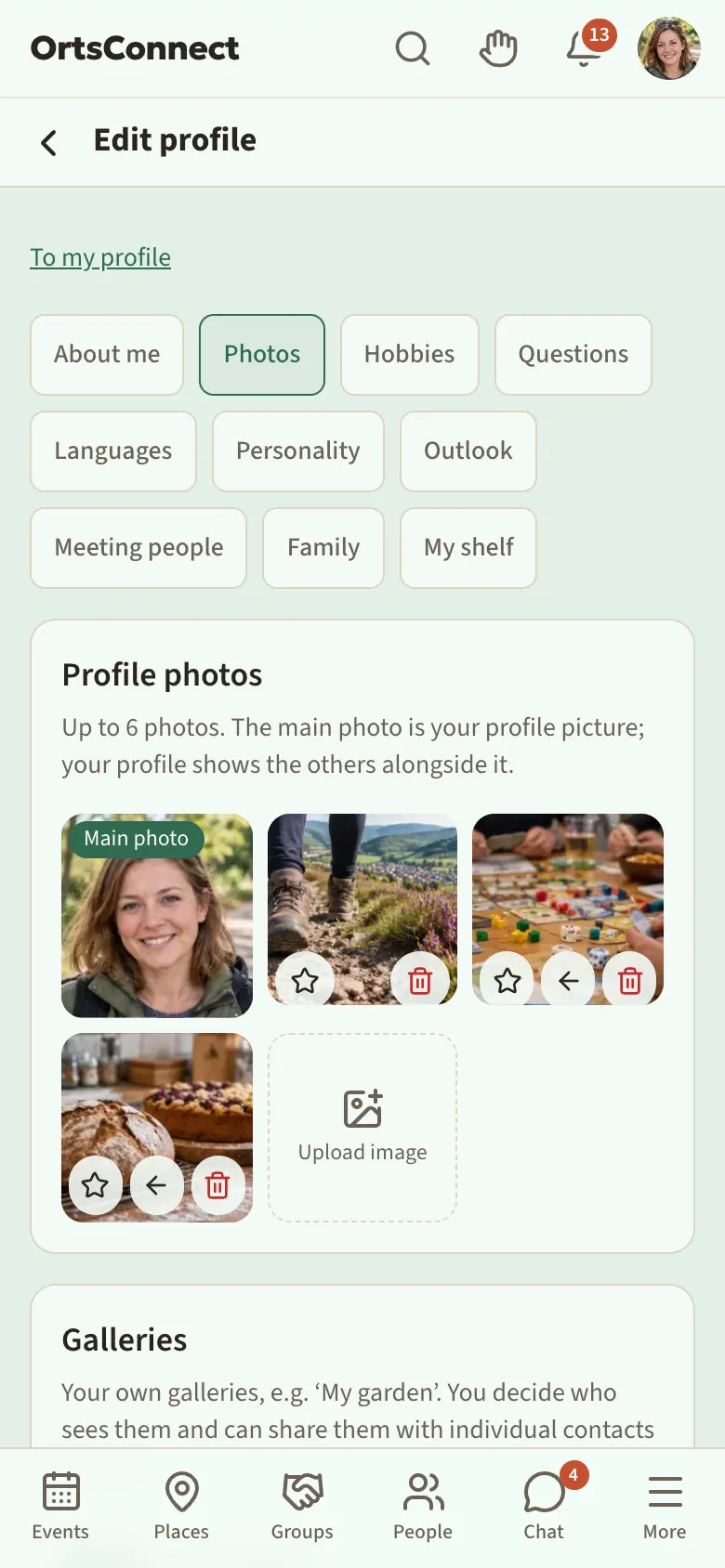
At the top of the Photos tab is Profile photos. You can show up to six photos: your Main photo and up to five more. The main photo is your profile photo. It appears everywhere your photo is shown, for example in the chat and on your card in People. Your profile shows the other photos next to it.
How to add a photo:
- Open My profile › Edit profile › Photos.
- Tap Upload image and choose a photo.
If you don't have a profile photo yet, the first photo becomes your main photo. Every further one is added until all the places are full. Then Upload image disappears.
At the bottom of each further photo there are three small buttons:
- Make main photo (star) – the photo becomes your profile photo. Your previous main photo moves to the other photos.
- Move forward (arrow) – the photo moves forward one place. The first further photo doesn't have this button.
- Remove photo (bin) – the photo is deleted straight away.
You can also replace your main photo in the About me tab via Upload image.
Good to know: Everyone who sees you in DettingenConnect sees your main photo. Your other photos are only seen by people who are also allowed to see your People profile.
Galleries
Below the profile photos are your Galleries, for example ‘My garden’ or ‘Our hike’. You can create several galleries, each with up to 30 photos; if your community offers Plus, it's three galleries without Plus and ten with Plus. For each gallery you decide who sees it.
How to create a gallery:
- Open My profile › Edit profile › Photos.
- Under Galleries, tap the Name of the new gallery field and enter a name.
- Next to it, choose who sees it:
- Only me – nobody but you
- My contacts – everyone you're connected with
- Everyone who can see my profile – everyone who is allowed to see your People profile
- Tap Create.
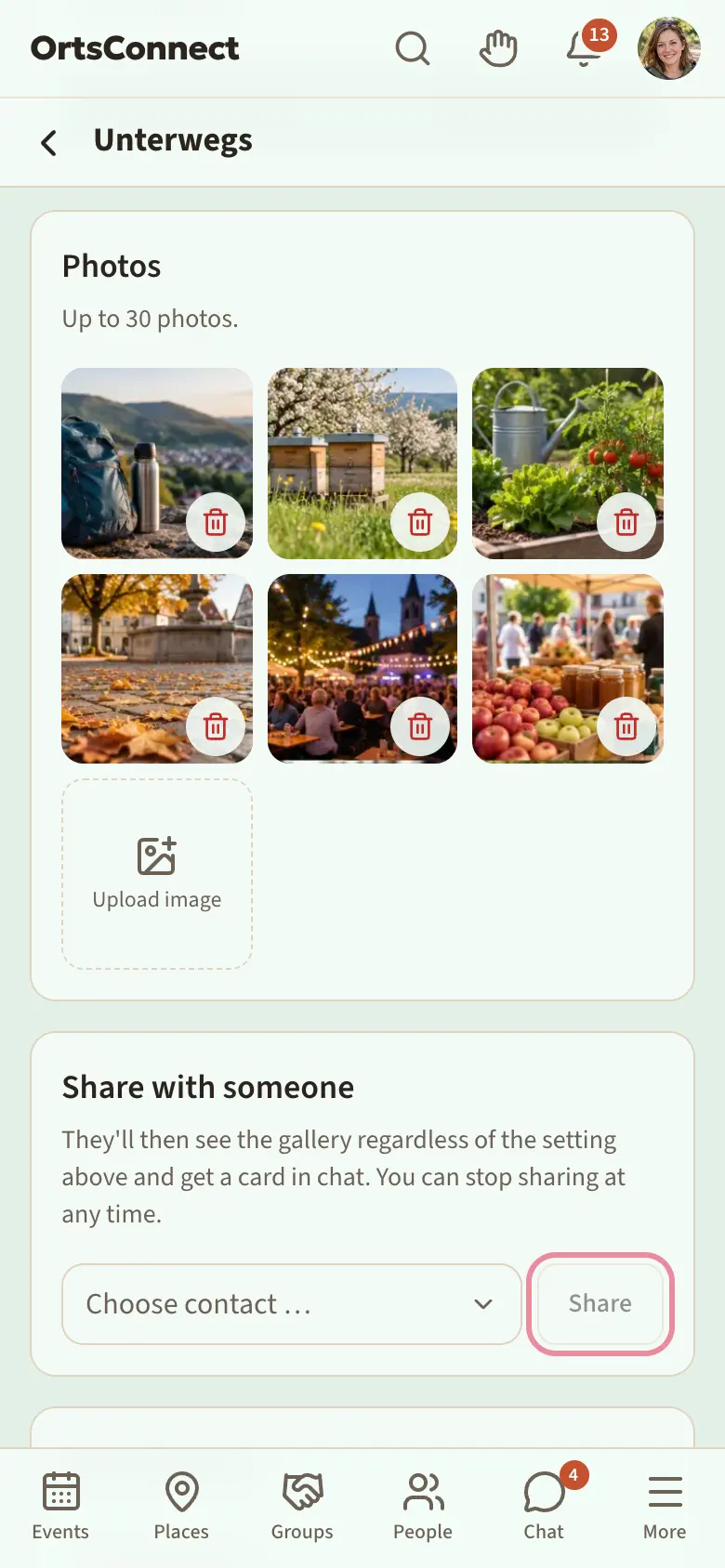
The page of your new gallery opens. It has four sections:
- Settings – here you change Name and Who can see it?. Then tap Save.
- Photos – tap Upload image to add a photo. Use the bin on a photo (Remove photo) to delete it again.
- Share with someone – show the gallery to a single contact (see below).
- Delete gallery – tap Delete gallery … and then, to confirm, Delete gallery and all its photos. With Cancel everything stays as it is.
Back to photos takes you back to the Photos tab. All your galleries are listed there with their visibility and number of photos. Tap a gallery to edit it.
Sharing a gallery with someone
You can show a gallery to a single contact, even if it's otherwise set to Only me.
- Open the gallery.
- Under Share with someone, choose a person under Choose contact.
- Tap Share.
You'll see: Shared – the card is in the chat. The person gets a message in your direct chat with the View gallery card. They can now see the gallery regardless of the setting under Who can see it?.
Everyone you've shared the gallery with is listed under Share with someone. Use the cross next to a name (Stop sharing) to take back the sharing at any time.
Good to know: You can only share with your contacts. If you don't have any yet, it says You don't have any contacts to share with yet.
Photos and galleries on your profile
Under My profile you see how your profile looks to others. Your other profile photos appear there as a strip of photos you can swipe sideways. Tap a photo to see it large. Below that, the galleries set to Everyone who can see my profile appear as tiles. Galleries set to Only me or My contacts don't appear here, so that you really see the view for everyone; you'll find them under Edit profile › Photos. Tap a tile to open the gallery.
With other people, you see exactly what they've shared with you. If you open a photo large, Report appears below it (see ‘Reporting something’).
Outlook – only with your consent
In the Outlook tab you can show where you stand on society and what matters to you. This is entirely optional.
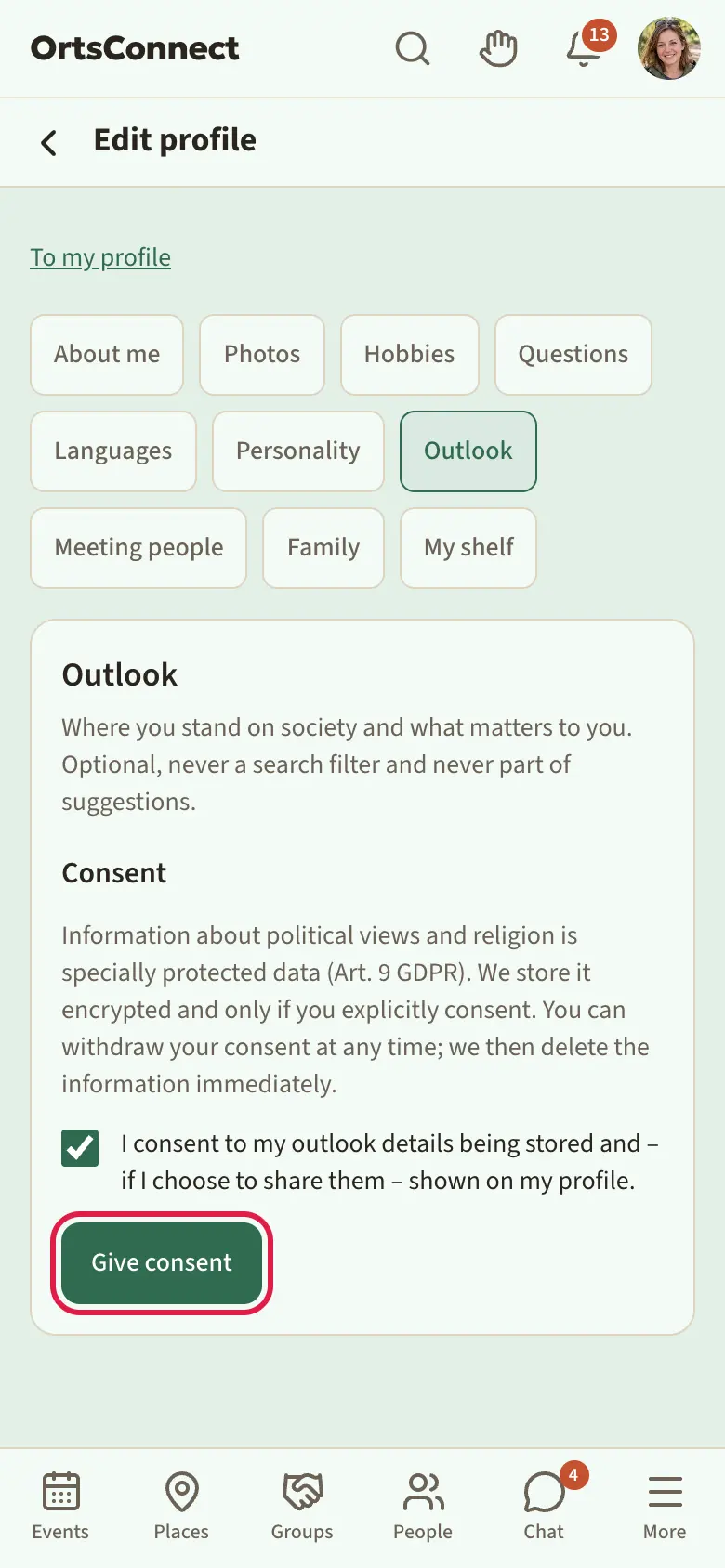
Information about political views and religion is specially protected data (Art. 9 GDPR). That's why:
- The tab is only available from 18. If you're younger, it says This section is available from age 18.
- DettingenConnect only stores the details if you explicitly consent first.
- The details are stored encrypted.
- Nobody can search or filter by your outlook. It also never counts for For you.
- To begin with, the Show on my profile tick box is off. Only when you tick it can others see your outlook.
How to set up the section:
- Open the Outlook tab.
- Read the text under Consent.
- Tick I consent to my outlook details being stored and – if I choose to share them – shown on my profile.
- Tap Give consent.
- Under Politically, I'm, choose your own assessment: clearly left, centre-left, centre, centre-right, clearly right, apolitical or not stated. It's about you, not about a party.
- Under What matters to me, choose up to ten points, for example environment and climate, family, volunteering, religious or non-religious.
- Tick Show on my profile if others may see this.
- Tap Save Outlook.
You can withdraw your consent at any time:
- Open the Outlook tab. At the bottom it says when you gave consent, for example ‘Consent given on 09.10.2026’.
- Tap Withdraw consent and delete details.
- To confirm, tap the red Withdraw consent and delete details button again. With Cancel everything stays as it is.
You'll see: Consent withdrawn, details deleted. Your outlook details are then deleted straight away. If you want to enter something again later, you give consent again.
My shelf
If your community has My shelf, you can show books, films & series, board games and music that mean something to you there. Shared titles help you find people with similar taste.
- Open My profile › Edit profile and tap the My shelf tab.
- At the top, choose the area: Books, Films & series, Board games or Music.
- Under Search, enter a title or name and tap Search.
- On the right result, tap Add to shelf.
- On the entry, choose what applies, for example read, want to watch, like playing or Fan. This is saved straight away.
Use the X to take an entry off the shelf again. Each area holds up to 20 entries.
If you can't find a book, tap Not listed? Search Open Library below the results.
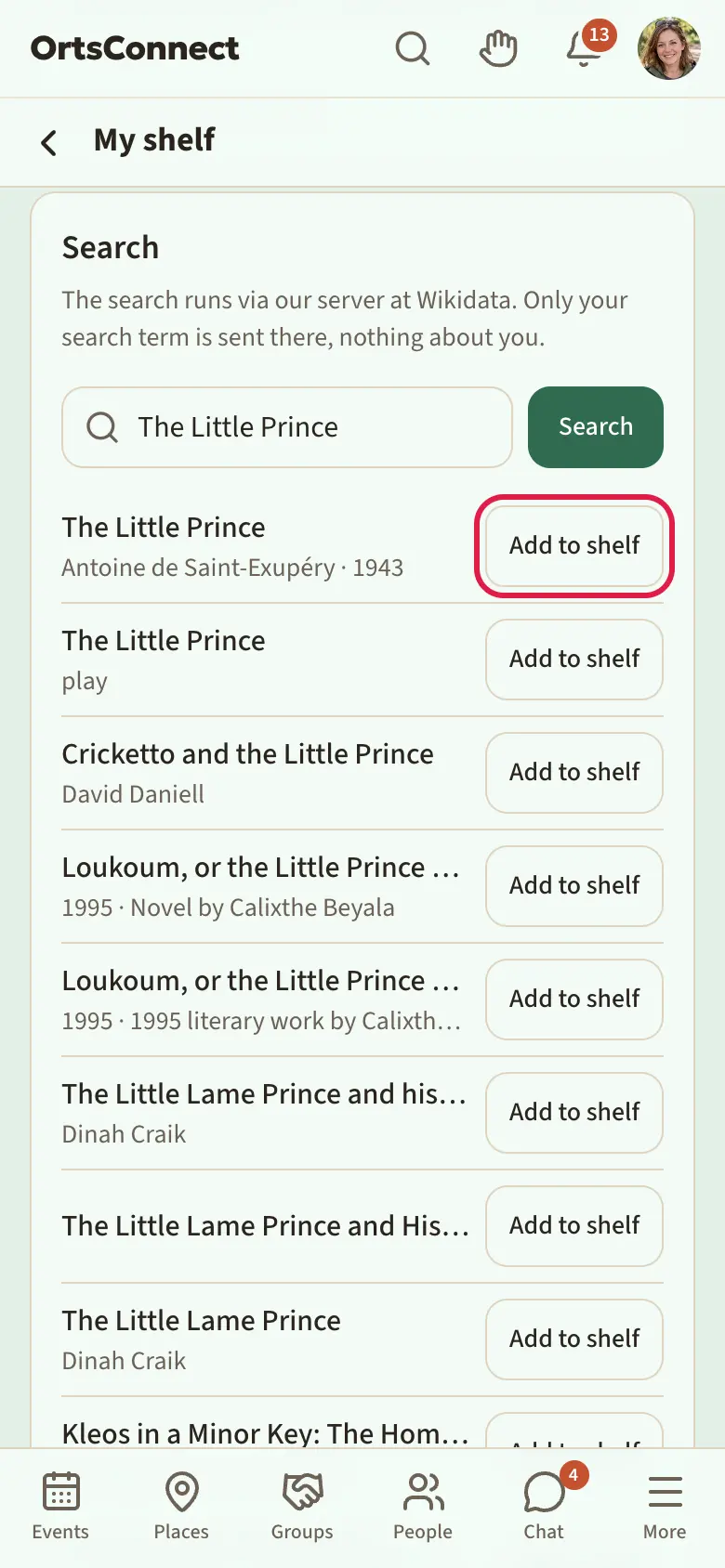
Good to know: The search runs via the DettingenConnect server. Only your search term goes to the catalogues (Wikidata, MusicBrainz, Open Library), nothing about you. There are no cover images.
On your profile, the shelf appears as a section of its own. What you have in common with someone is highlighted there and marked with you both have this. Shared titles also count towards the suggestions under For you (‘1 shared title on the shelf’); entries marked want to … don't count.
If you don't want to show your shelf, untick Show on my profile at the bottom of the shelf page. Then only you can see it.
Discovering people
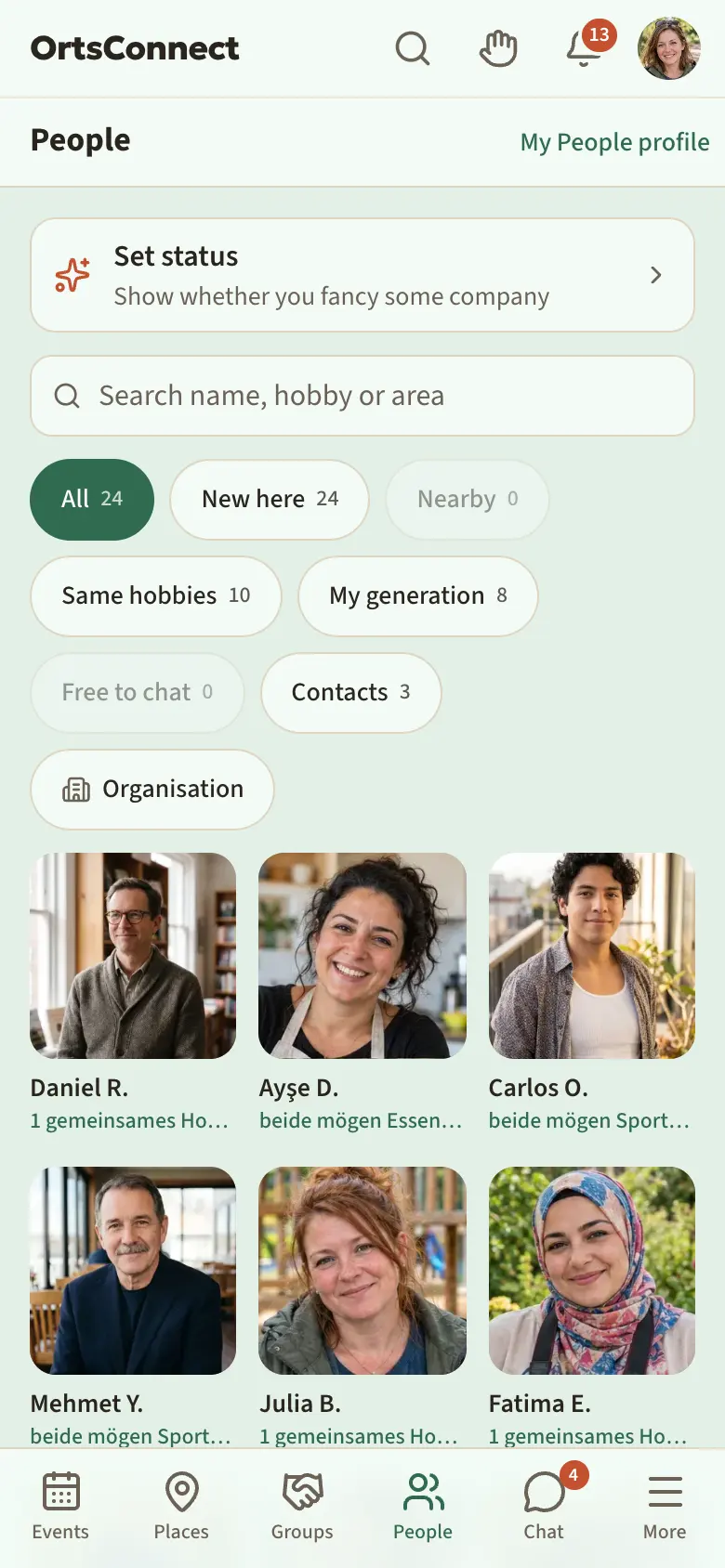
In People you see everyone who can be found there. At the very top are those who suit you best – with a reason, for example ‘2 shared hobbies’, same group or you were at the same event.
If someone is looking for company for an event right now, the Looking for company section appears above.
People are shown as tiles side by side: photo, name and below that your shared hobbies, otherwise age and neighbourhood. With the Search name, hobby or area search field you can find someone specific, for example everyone who likes hiking.
Use the filters above to narrow down the list. Each filter shows how many people match; if it shows 0, it's greyed out and can't be tapped:
- All – everyone who can be found in People
- New here – people who joined in the last 30 days, newest first
- Nearby – people who live no more than 15 kilometres from you
- Same hobbies – everyone who shares your hobbies
- My generation – people from your generation (Baby Boomers, Gen X, Millennials …, worked out from the year of birth). Only people who show their age on their profile are included (set to decade by default); anyone who hides it never appears here. The filter is available once you've entered your date of birth.
- Free to chat – people who have set a status right now, for example Up for a chat (more on this under ‘Your status’)
- Contacts – people you're already connected with
With the Organisation button you only see people who belong to a particular organisation. A selection opens with Search organisations; at the top, under Mine, are your own organisations, below them All. The filter applies on top until you clear it with Clear filter. Only people who show their memberships on their profile appear there (see ‘What others see of you’).
If you've chosen a filter, an organisation or a search term, you can save the view with Save search. It then appears as a button above the list, and if someone new joins who matches, DettingenConnect lets you know. Use the cross next to it to delete the saved search. If your community offers Plus, you can save one search without Plus and several with Plus.
Tap a person to see their profile. It shows what they've shared:
- Hobbies by area, with the level for Sport, Music and Culture, for example ‘Tennis (I like watching)’. Your shared hobbies are highlighted in colour.
- Questions with their answers
- Languages with level
- Personality
- Outlook, only if they've given consent and shared the section
- Photos as a photo strip and Galleries as tiles, if they've made them visible to you
- Groups & organisations – where they belong, each with Member, Team or Joined below; shared ones are marked shared
- Looking for company – events they're looking for someone to go with
If a section is missing, the person hasn't filled it in or hasn't shared it.
Getting to know someone
- Open the person's profile.
- Tap Get to know.
- Write briefly why you should get to know each other (300 characters at most).
- Tap Send request.
As long as the person hasn't replied, it says Request pending. If they accept, you're Contacts and can write to each other.
If you're already connected or in a shared group, it says Message straight away.
Good to know: You can only have a limited number of open requests. Then you'll see You have too many open requests right now. Wait for some replies.
Where you live and ‘Nearby’
When setting up your profile and under Edit profile › About me, you enter Where you live: the Country and, in Germany, Austria and Switzerland, the Postcode, otherwise the Town. Others only see the town, for example Lives in Neustadt · 5 km away, never your postcode. If you tap the town on a profile, you'll see a short description from Wikipedia and the number of inhabitants.
In People, the Nearby filter shows everyone who lives no more than 15 kilometres away. If you haven't entered where you live yet, the Add where you live tile on the home page reminds you.
Known in person (handshake)
If you also know someone from the app in real life, you can have that confirmed:
- Open the person's profile.
- Tap I know them in person.
The person gets the question Do you know each other? and answers on your profile with Yes, we know each other or No. Until then you see Handshake offered · withdraw. If they say yes, you both see You know each other in person with the month. Nobody finds out about a no.
Once at least two people have confirmed that they know you in person, your profile says known in person – never a number, never a list. If you don't want that, turn off Show ‘Known in person’ on profile under Settings › Privacy. You can take back a handshake at any time with withdraw.
Answering requests
You see new requests as a tile on the home page and as a number on People at the bottom.
- In People, tap the note with the number of requests at the top.
- Read the request.
- Tap Accept or Decline.
If you decline, the other person doesn't find out.
Looking for company for an event
You want to go to an event but not on your own?
- Open the event.
- Scroll to Who's going.
- Tap I'm looking for company.
- Write a Note (optional).
- Under Who can see this?, choose: everyone in People, people with the same hobbies or only my contacts.
- Tap Save.
If you no longer want to look, tap Stop looking. Under Who's going you can also see who else is looking for company.
Blocking
If you don't want anything more to do with someone, open their profile and tap Block. You then no longer see each other in People and can't write to each other.
Your status
Everyone who is visible in People can briefly show what they're open to right now:
- Up for a chat
- Up for anything – you'd have time for something today
- Can help right now – for example for helping neighbours
- Please don't disturb
- Tap Set status at the top of People, the status symbol in the header at the top, or Free now on Home.
- Choose a status.
- Choose how long it should last: 1 hour, 3 hours or 6 hours. Each button shows until when the status will then apply.
The status ends by itself. You can end it earlier with End status. Others see it on your card and on your profile, but only in People, never publicly and without your location. Under Free to chat you'll find everyone who has set a status right now.
Good to know: With Please don't disturb, others can still send you a request to get to know you. But you don't get a notification for it; the request waits under Requests until you look.
Checking in: I'm here now
Are you sitting in a café, at the sports ground or at an event and would be glad of some company? Then tell the others.
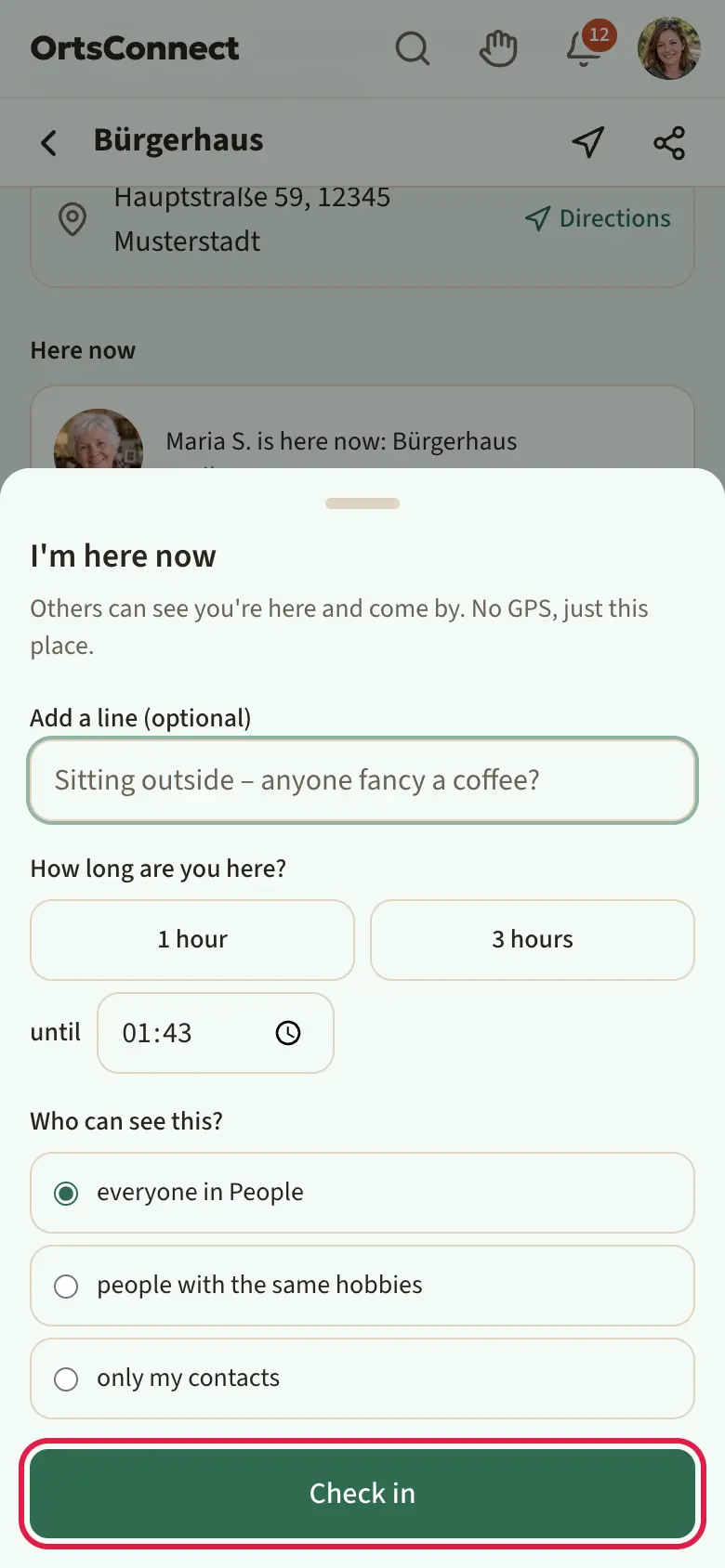
- On Home, tap I'm out and about. The list of places opens; if DettingenConnect may use your location, the nearest are at the top. You can also start directly on the page of a place or an organisation.
- Tap the place and then I'm here now.
- Under How long are you here?, choose 1 hour, 3 hours or a time under until.
- If you like, write Add a line (optional), for example ‘Sitting outside – anyone fancy a coffee?’.
- Under Who can see this?, choose: everyone in People, people with the same hobbies or only my contacts.
- Tap Check in.
Others then see you at the place under Here now and on Home under Happening now, with the Come by button. If someone taps it, you'll find out. If you've tapped Come by yourself and it doesn't work out after all, tap Not coming; the person finds out about that too.
As long as you're checked in, your card You're here now: … appears first under Happening now on Home. With Change you adjust the time, the line and visibility at the place; with Check out you're gone again straight away. Otherwise the check-in ends by itself at the time you chose.
Good to know: Checking in only works at places in the app and only if you can be found in People. DettingenConnect doesn't use GPS for this: others only see the place you chose yourself.
Notes on people
So that you remember who likes what or what you talked about, you can make notes on every member. Only you can see them.
- Open the person's profile and tap My notes on …. In the direct chat you'll find the same notes at the top under Notes.
- Choose the type: Likes, Dislikes, General or Personal.
- Write what you want to remember and tap Add.
Use the pencil to change a note; you'll also find Delete there. From the chat, a message comes straight here with Add to my notes (chapter 9). The notes are stored encrypted. If your community offers Plus, five notes per type and person fit without Plus, and as many as you like with Plus.
9. Chat
The chat overview
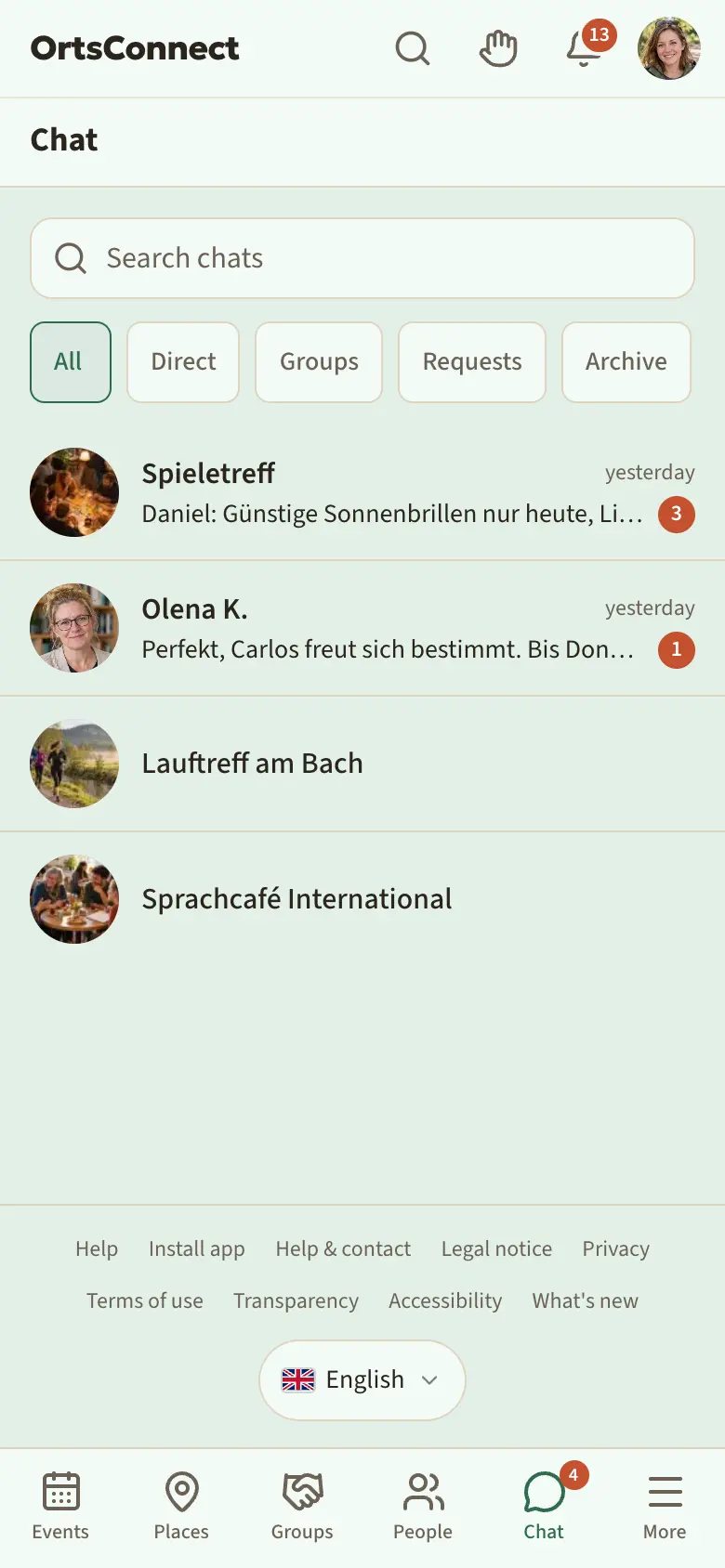
Tap Chat at the bottom. At the top you can choose:
- All, Direct (one-to-one conversations), Groups, Requests and Archive
With Search chats you can quickly find a conversation again. A number on a conversation shows unread messages.
Starting a conversation
- Group chat: every organisation has a group chat. As a member, you open it on the organisation's page with Group chat.
- Direct: on a person's profile or in an organisation's member list, tap Message.
If you don't share an organisation, your first message goes out as a request. The other person decides with Accept or Decline. Until then you see Your request is waiting for a reply.
Requests to you are in the Requests tab.
Writing and sending
- Tap the Message field at the bottom.
- Write your text.
- Tap Send.
Use the smiley next to the field to add Emojis. Use the sticker symbol in the field to send a Sticker; at the top are your Favourites and what you've sent recently (Recent), and with Search stickers you'll find more.
Below your message you'll then see:
- sending – it's on its way
- read – the other person has read it. In groups it says read by and a number.
- Not sent. Tap to retry. – tap it to try again
If someone is writing right now, you'll see ‘… is typing …’ at the top.
Tip: Words between asterisks become bold, for example *tomorrow*. Words between underscores become italic, for example _please_.
Sending later
If your community offers Plus, with Plus you can send a message at a later time. Write the text and tap the clock next to Send (Send later). Choose In an hour, Today 6 pm, Tomorrow 9 am or a time of your own and tap Schedule. Until then only you can see the message, and you can take it back with Take back scheduled message.
The bar at the top of a direct chat
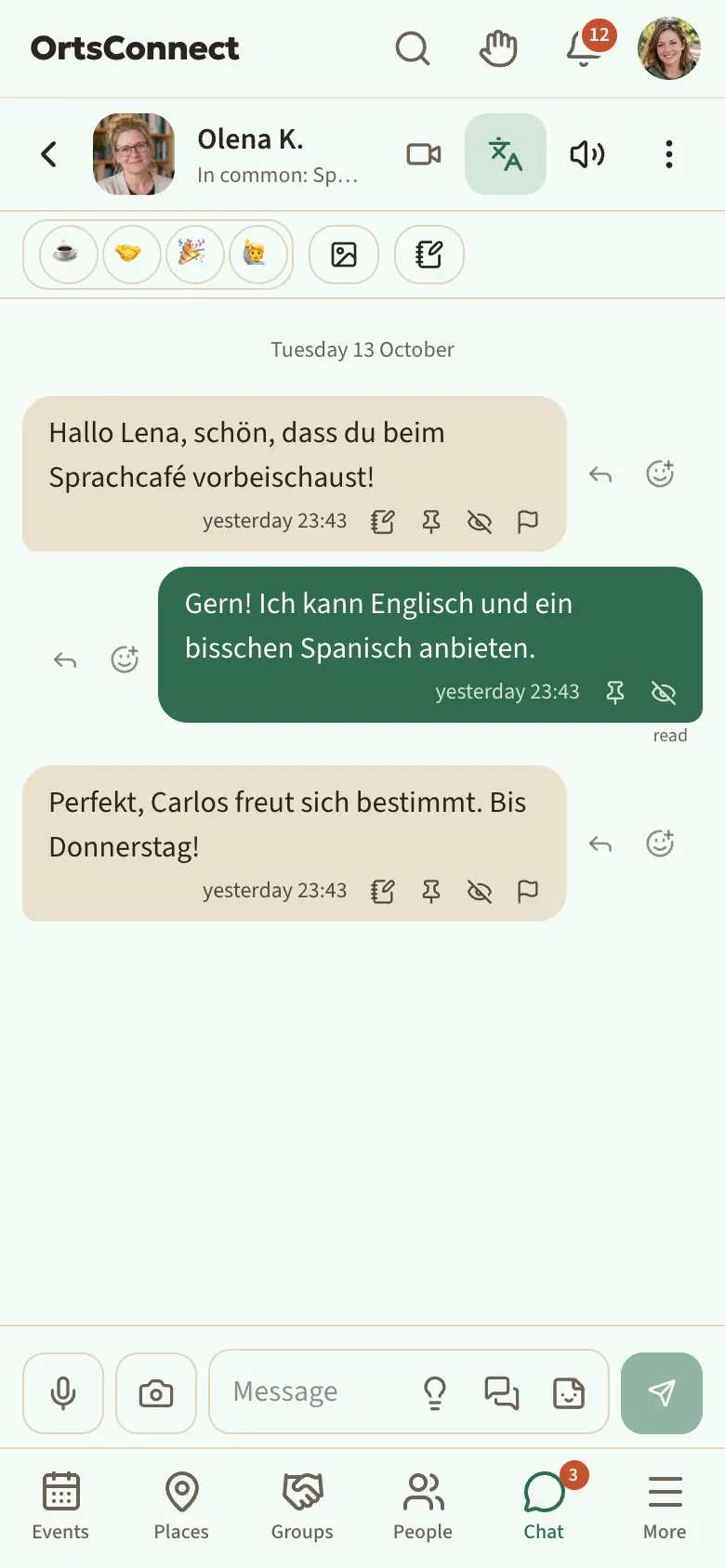
Above the history of a direct chat there's a narrow bar:
- Mood – show what you're in the mood for: ☕ Just chatting, 🤝 Happy to meet up, 🎉 Up for something or 🙋 Need advice. Your choice is filled in, the other person's has a ring; if you've both chosen the same, it's both. Tap again to take your choice back. The other person sees it straight away.
- Photos – whether you accept photos in this chat (see ‘Photos only with your consent’)
- Notes – your notes on this person (chapter 8, ‘Notes on people’)
At the top of the page header there's also a loudspeaker (Sound). There you turn Sound in this chat off or on, choose the Sound for all chats and set the Volume of all sounds. Notifications aren't affected by this.
Reacting or replying to a message
Everything you can do with a message is right there on it; there's no menu.
- React – tap the small ⊕ next to the bubble and choose any emoji.
- Reply – tap the arrow next to the bubble or swipe the message to the right. Your reply shows the original message as well.
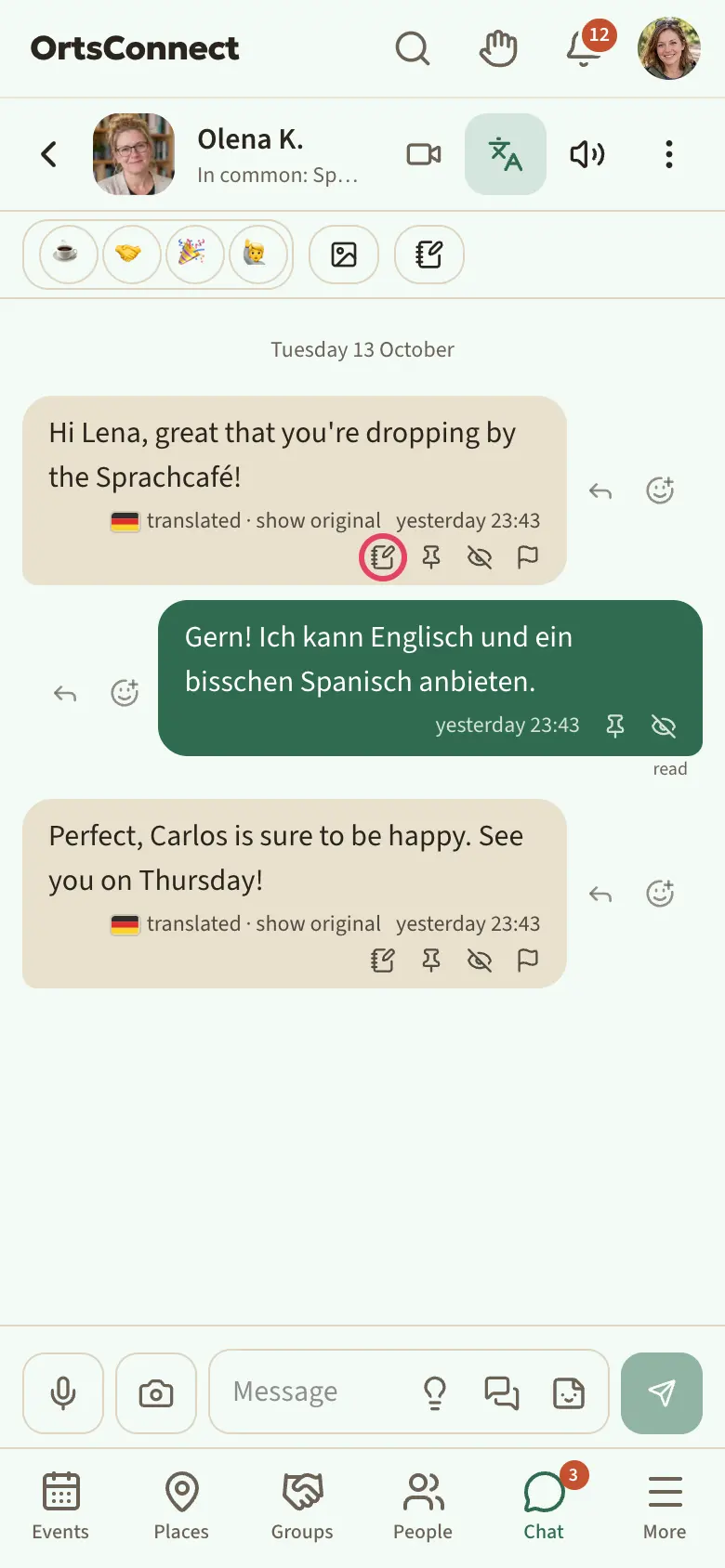
In the small line with the time below the message you'll find, depending on the message:
- Edit and Retract – only for your own messages and only as long as nobody has read them yet. A retracted message disappears for everyone without a trace. Once it has been read, it stays.
- Add to my notes – for other people's messages: the text becomes a ‘General’ note on this person. On a phone you can also do this by swiping the message to the left.
- Pin and Unpin – in a direct chat for both of you, in a group chat only for the organisers. Pinned messages appear at the top of the chat in the Pinned bar; tapping it jumps there, and if there are several, to the next one (‘1 of 3’). If your community offers Plus, five pinned messages per chat are possible without Plus.
- Delete for me – the message only disappears for you.
- Report – for other people's messages.
- Remove for everyone – only for the organisers in a group chat, for other people's disruptive messages. It then says ‘Removed by the group organisers’.
Photos, files and voice messages
Tap the camera next to the input field. Then choose:
- Take now – a photo straight from the camera
- Choose photo – up to ten photos at once
- PDF – a document, 10 MB at most
You can also paste photos or, on a computer, drag them into the chat. They wait as a preview above the field; whatever you write with them is sent as a caption. If your community offers Plus, with Plus you can send more photos per message and bigger files.
For a voice message, tap the microphone while the input field is empty:
- Tap the microphone. The first time, allow access to the microphone.
- Speak your message. You'll see Recording … with the seconds. A recording can last up to two minutes, longer with Plus.
- Tap Send or Discard.
When listening to a voice message, you can switch the speed with 1× and 1.5×.
A gallery in the chat
If a contact shares a gallery with you, you get a message in your direct chat, for example ‘I've shared my gallery ‘My garden’ with you.’ Below it is the View gallery card with the name of the gallery. Tap it to see the photos. Tap a photo to see it large; Report appears below it.
How to share a gallery yourself is explained in chapter 8 under ‘Sharing a gallery with someone’.
Good to know: The person can take back the sharing at any time. The card stays in the chat; if you tap it then, you'll only see a note that you no longer have access.
Mentioning someone
In group chats you can address someone directly: type @ and the beginning of their name. Choose the person from the list. They then get a notification of their own.
Chat settings
In a conversation, tap the three dots at the top right (Chat settings). There you can:
- Mute for 8 hours, 1 week or Always – and take it back with Unmute
- in groups, choose Mentions only – then you're only notified when someone addresses you with @
- Pin to top – the conversation then stays at the very top
- Archive – the conversation moves to the Archive
- in direct conversations, Block and Unblock
- in group chats, switch Go to organisation
- change the Text size, Clear history for me and, in direct conversations, End chat (see below)
Under Settings › Privacy you can turn on Hide my online status. Then nobody sees whether you're in the chat right now, writing, or when you were last active – and you don't see that for others either.
Good to know: Notifications about chat messages only name the sender and the number, never the text.
Photos only with your consent
In direct messages you only accept photos when you want to. If someone sends you a photo, it first says Image waiting for your consent. Tap Allow images to see it. You can also switch photos on in advance for a conversation: tap Photos in the bar at the top of the chat. The same bar shows whether the other person accepts photos; if they don't yet, DettingenConnect tells you when you send one. This doesn't apply in your organisations' group chats.
Text size
In the Chat settings, tap Text size and choose Small, Normal or Large. The setting applies to all chats on this device.
Conversation ideas and topics
Don't know how to start? When the input field is empty, you'll see a light bulb in it (Ideas to get started). It shows suggestions based on your shared hobbies or events. Use puts the text into the input field. Nothing is sent until you tap Send yourself; you can change the text first.
In a direct chat you can also use Suggest a topic to ask whether the other person fancies a topic, for example Meeting up, Travel or Our village. The answer is Sure or Not right now.
Note about phone numbers or email addresses
If you write a phone number or email address in a message, DettingenConnect reminds you once to think carefully about who you give it to. Send anyway sends the message. The note appears only once on each device.
Ending a chat
If you want to end a conversation in a friendly way without blocking anyone, tap End chat in the Chat settings and confirm. After that neither of you can write any more, but the history is kept.
Good to know: You can still block someone if they're harassing you. Then you no longer see each other in People either.
Links in messages
If you tap a link that leads out of DettingenConnect, the app first shows the This link leads outside the app window with the address it leads to. Tap Open link or Stay here. Only open links you trust.
Without internet
If you have no connection at the moment, DettingenConnect remembers your message and sends it as soon as you're back online.
10. Notifications and settings
Opening your settings
- Tap your photo or your initial at the top right.
- Tap Settings.
At the top you'll find the tabs Account, Security, Notifications, Privacy, Appearance, My data and My requests. In the app from the store there's also Delete account after them. Your People profile isn't here but under My profile.
My profile
You'll find My profile at the top of the avatar menu. There you see your profile the way others see it, and the Profile … % complete ring. With Edit profile you change it in nine tabs: About me, Photos, Hobbies, Questions, Languages, Personality, Outlook, Meeting people and Family. Everything about this is in chapter 8 under ‘Building up your People profile’, ‘What others see of you’, ‘Your photos’, ‘Galleries’ and ‘Outlook – only with your consent’.
If you haven't set up your profile yet, Edit profile starts with the short What do you enjoy? page.
Account
Under Account you can:
- change your first name and last name
- under Name shown to others, choose whether others see First name and initial or your Full name
- change your email address
- set a new password under Change password
- pause your account under Take a break (see chapter 13)
If you've changed your name or email address, the Not saved bar with Save changes appears at the bottom. You save a new password with Save in the Change password section.
In the Appearance tab you choose:
- whether DettingenConnect looks Same as system, Light or Dark – this applies to this device; it's quicker with Dark or Light in the avatar menu
- the Accent colour for buttons and highlights, for example Blue or Teal; if your community offers Plus, there are custom colours with Plus
- the Language, if your community offers several (chapter 3)
Being findable in People
With your account you can be found under People, so that others with the same hobbies can get to know you. If you don't want that:
- Open Settings › Privacy.
- Turn off Findable in ‘People’.
Then you're invisible in People, but you can still see the others and get to know them. The only thing you can't do then is add Looking for company, because nobody would see you there. You can turn it back on at any time.
Appearing in the feed
On the home page, the Happening now section shows what people are doing: for example who's new, joins an organisation, goes to an event, has a new game personal best, taps ‘I'm often here’ at a place, shows a new profile picture or gallery or has filled in 25, 50, 75 or 100% of their profile. This is switched on for everyone. Events appear there without time or place; entries disappear after 30 days.
If you don't want to appear there:
- Open Settings › Privacy.
- Turn off Appear in the feed.
Your entries are then gone straight away. You still see what the others are doing.
Setting up notifications
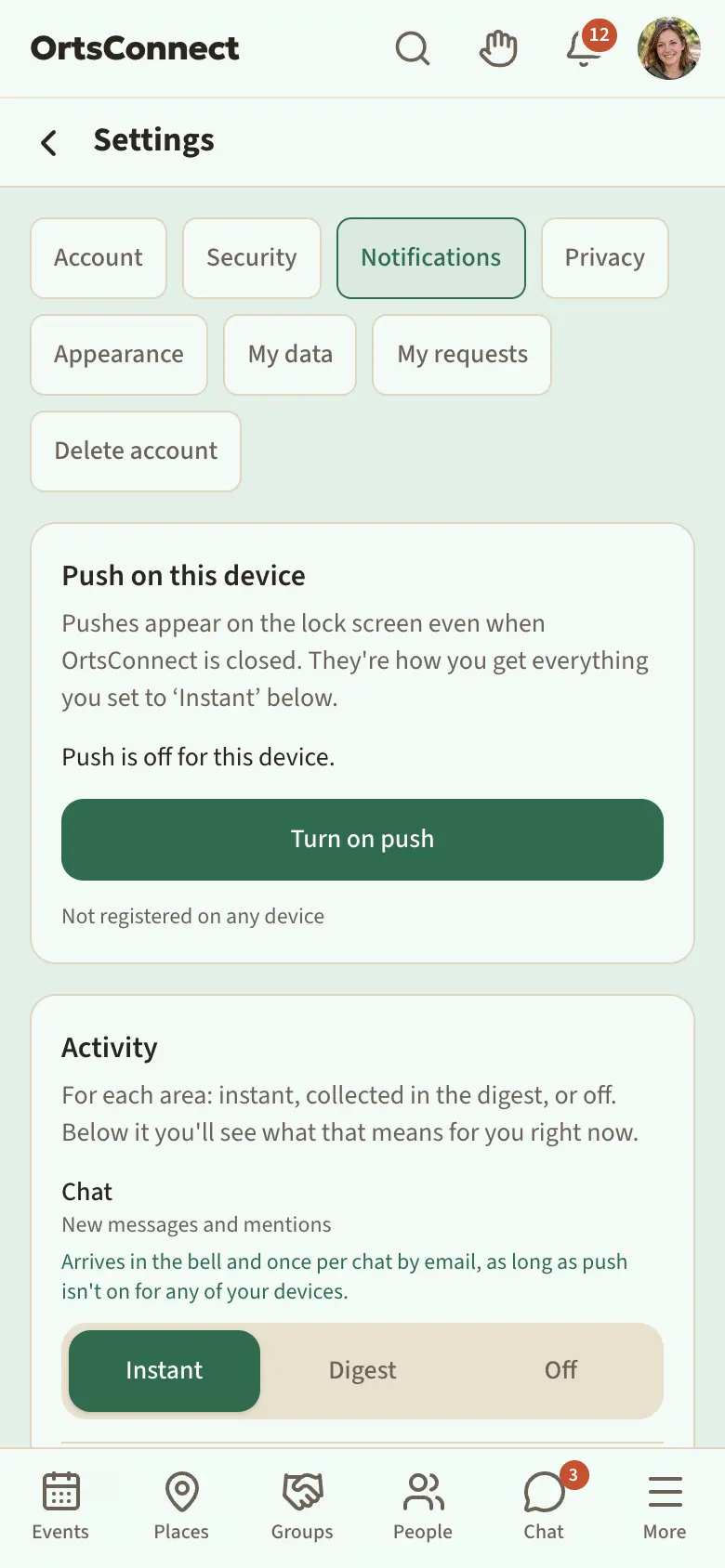
Under Notifications you decide for each area how you're informed – for example for Chat, Events, People or Payments:
- Instant – you get a notification straight away
- Digest – it goes into your email digest (see below)
- Off – no notification
Just tap the level you want. Your choice is saved straight away. Below each area, one sentence says what your choice currently means, for example ‘Arrives instantly as a push on your devices and in the bell.’ or, as long as you haven't turned on push on any device, ‘… by email’.
Good to know: From the start, you only get notifications on your phone for personal things: messages, bookings, requests and your own events. News from organisations only comes to your phone if you've turned on the bell for that organisation.
Email digest
DettingenConnect sends you an email with what's going on in your area. Under Email digest you choose:
- Daily – every day at the chosen Time
- Weekly – once a week on the chosen Day of the week at the chosen Time
- Off – no digest
New accounts get it weekly on Fridays at 8 am.
The digest only contains what there is right now:
- Collected for you – everything you've set to Digest
- Events this week
- News from organisations you follow or are a member of
- Pending join requests and Open room requests, if you run an organisation or look after a place
- News and New places
- People – only as a number, for example ‘3 people share your hobby Hiking’, never with names
If there's nothing new, no email is sent.
Good to know: Small pictures are included directly in the email. Nothing is loaded from other servers when you open it.
Operator emails
Sometimes the operator of DettingenConnect sends an email to everyone, for example about a festival or something new. If you don't want that, turn off the Receive emails from the operator switch under Notifications › Emails.
If messages to you have been unread in the chat for 2 or 7 days, DettingenConnect sends you a combined reminder by email, for example ‘Anna is waiting for your reply’. If you don't want that, turn off Reminder about unread chats under Emails.
At the very bottom, under Always sent, it says which emails you can't turn off because they concern your account: for example when your password changes.
Unsubscribing without signing in
At the bottom of every digest there's Stop the digest, and in every operator email Stop operator emails. Tap it and then Yes, unsubscribe. You don't need to be signed in for this. Many email programs also show their own unsubscribe button at the top; it works just the same.
You can turn both back on at any time under Notifications.
Good to know: The link in the email works for 90 days. If it's older, change the setting in the app.
Quiet hours
Under Quiet hours you turn on No pushes at night. You then get no notifications on your phone during that time. Use From and To to set the times. Anything that arrives during quiet hours reaches you afterwards in one go.
Sounds
While DettingenConnect is open, it plays a short sound when someone writes to you for the first time (New chat) and with every new message (New message). Under Sounds you choose the Sound, for example Drop, Wood, Blackbird or Bicycle bell; with Listen you can hear it first. You also set the Volume there. So that it doesn't ring all the time, there's at most one message sound per chat every 30 seconds.
With Visual alert with sound, DettingenConnect briefly shows ‘New message’ at the top and makes the phone vibrate, even if the sound is off. How notifications sound when the app is closed is set in your phone's settings. If your community offers Plus, there are four extra sounds with Plus.
Preview on the lock screen
Here you decide what a notification shows on your locked phone:
- Name and text
- Name only
- Neutral – only that there's something new
Push on this device
At the very top, under Push on this device, you see whether this device gets notifications and how many of your devices are registered. In the browser, tap Turn on push and allow notifications when your browser asks. With Turn off push you switch them off again.
With Send test push, all your devices get a test notification, even during quiet hours. Directly below it says how many devices it went to.
Tip: If it says your browser is blocking pushes, you once refused notifications for DettingenConnect. Below that it explains step by step where to allow them again in your browser.
On an iPhone, Safari can only send notifications if you've put DettingenConnect on your home screen (chapter 2). Otherwise, instead of the button, you'll see the note This browser doesn't support push. On iPhone, first use ‘Add to Home Screen’. Put DettingenConnect on your home screen, open it from there and turn on push.
Good to know: In the app from the App Store, notifications arrive automatically as soon as you allow them. You can turn them off there in your phone's settings.
11. Reporting and safety
Reporting something
If you see something that isn't right, you can report it to the moderators. You can report:
- chat messages (Report in the line with the time below the message)
- profiles in People (Report on the profile)
- photos on profiles and in galleries (open the photo large, then Report)
- posts by organisations (Report on the post)
- photos at events (open the photo large, then Report)
Here's how:
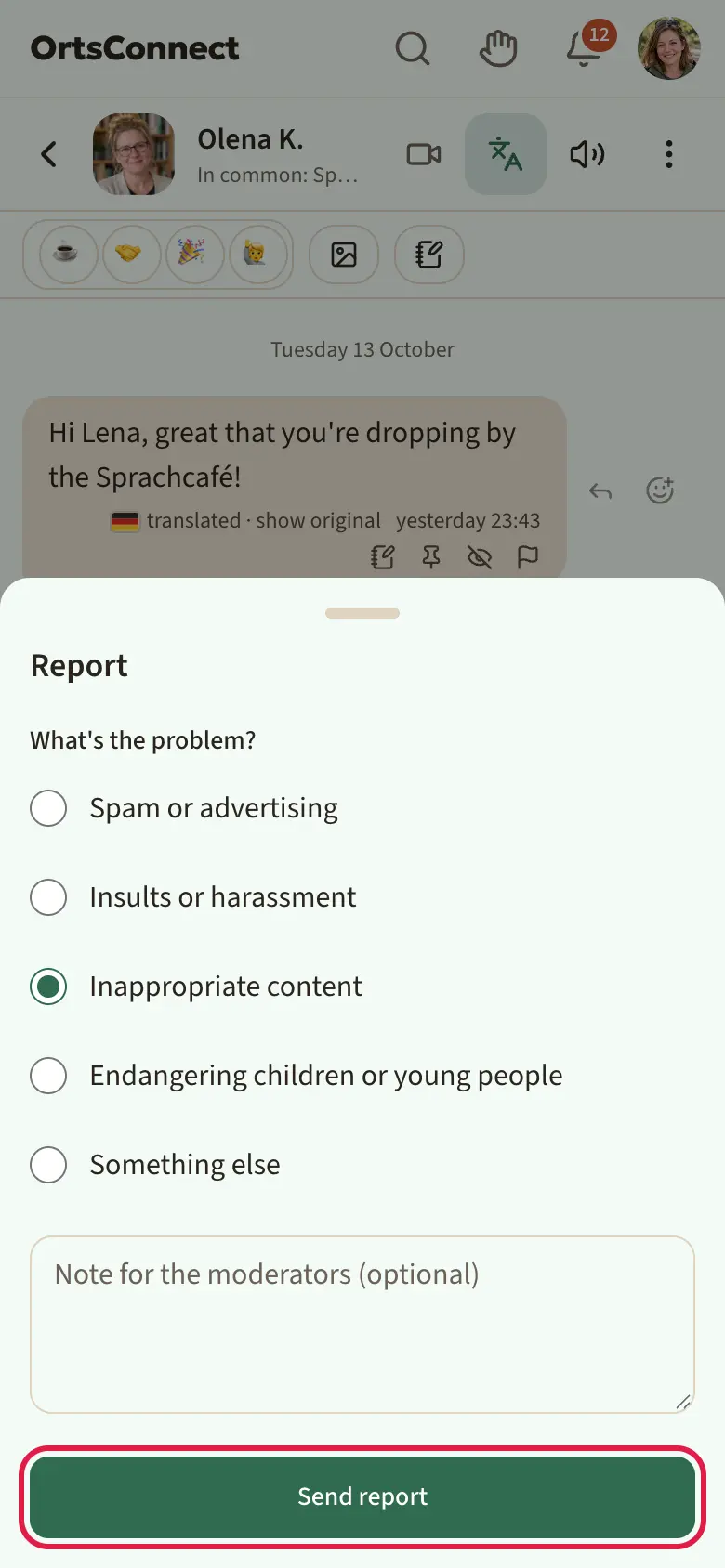
- Tap Report.
- Under What's the problem?, choose a reason: Spam or advertising, Insults or harassment, Inappropriate content, Endangering children or young people or Something else.
- If you like, write a Note for the moderators (optional).
- Tap Send report.
You'll see: Thanks! The moderators will take a look.
What the moderators see
The moderators don't read along in chats. They only see what was reported and a small extract around it. Every time they look, it's recorded. Then they decide: the report is dismissed, the content removed or the person banned.
If your account is banned
For serious breaches, the moderators can ban an account. Then, when you sign in, you'll see Your account is banned. or Your account is banned until ….
New terms of use
If the terms of use change significantly, the We've updated the terms of use window appears the next time you open the app, with a short summary. Read the full text expands the new version. Tap I agree and everything carries on as usual. I don't agree takes you to the Don't agree? page: there you get a copy of your data with Request a copy of my data, delete your account or tap Sign out and decide later. With Back, I agree after all you go back.
12. Extra sections
The following sections are only available if they're switched on in your community. You'll then find them at the bottom under More; Plus and My points are in the avatar menu.
FAQs and info
On the Help page, below the handbooks, there are also your community's FAQs and Info. News appears on your home page under New in the app.
Games
Under Games you'll find small games to play in between.
- Tap a game and then Play.
- The pause button stops the game (Paused), and Resume carries on.
- At the end you'll see your points. Again starts afresh, Leaderboard shows where you stand, and Go to games takes you back to the overview.
You can also play without an account. But your best scores are only saved if you're signed in.
Under Leaderboard you see the best of This week, Month and All time. Your name appears there; if you turn off Show my name on leaderboards, you appear as ‘Player’. For people you can also see under People, it says below what you have in common (for example ‘Shared: Running club · Hiking’), and tapping the name opens their profile.
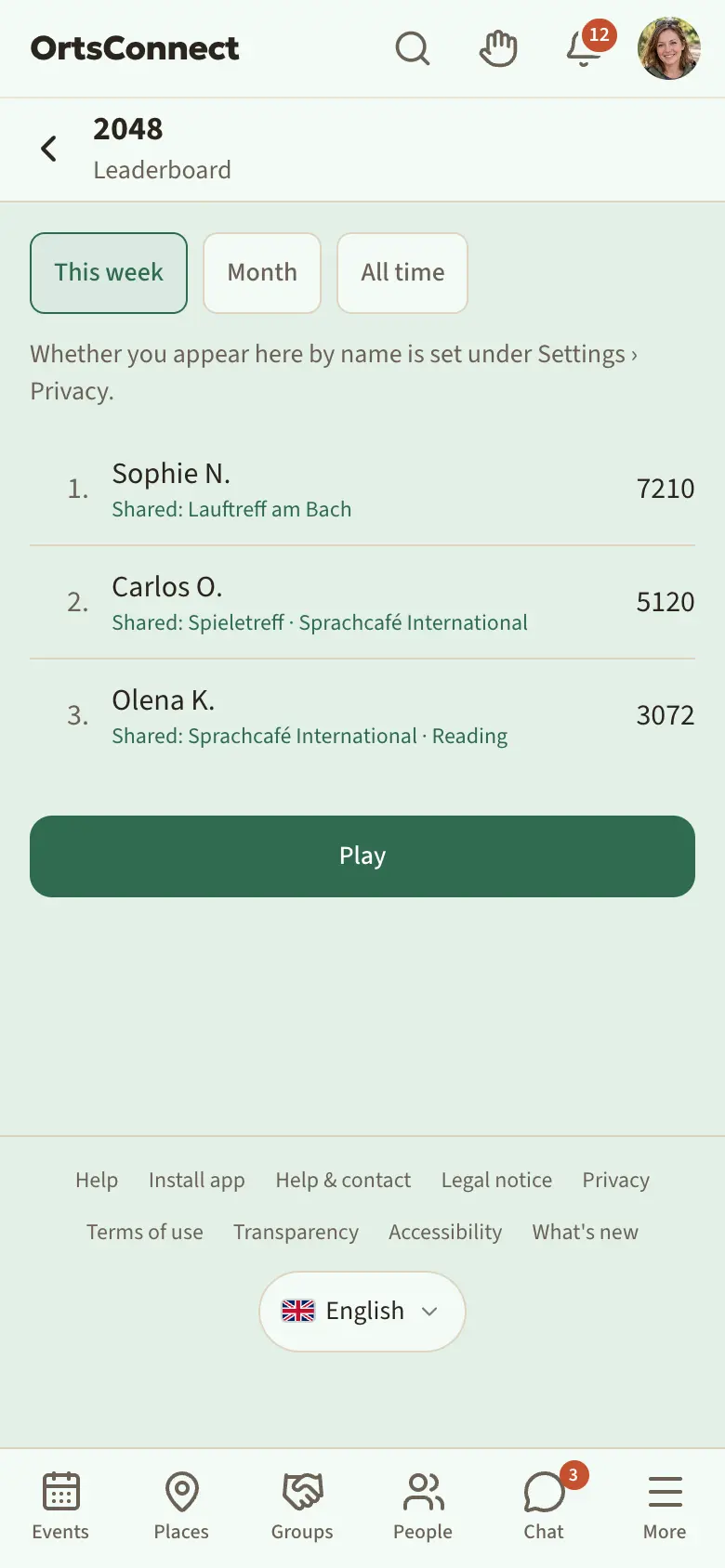
Radio
Under Radio you'll find stations from the region and beyond.
- Tap a station. It starts playing straight away.
- The player appears at the bottom. It stays there and keeps playing while you move around the app. It also shows which track is playing right now.
- Use the pause button to stop, and the X to turn the radio off.
Your device fetches the stream directly from the station, just like on the station's website. The station sees your IP address; the app doesn't store what you listen to.
Weather
Under Weather you see the weather locally: Now, The next few hours with the Rain radar and The next few days. If there's a severe weather warning, it appears at the top under Warnings. There's also a small weather tile on Home, and for events in the next few days the event page shows the forecast. The data comes from the Deutscher Wetterdienst (German weather service).
Plus
If your community offers Plus, you can support DettingenConnect with Plus and get more space and a bit more convenience in return. Taking part stays free for everyone: events, places, organisations, People, chat, privacy and security are the same for everyone.
Open Plus in the avatar menu. At the top it says whether you have Plus and until when. Under What Plus offers in addition, a table compares Without Plus and Plus, for example:
- more photos per chat message, bigger files and longer voice messages
- more photos per event, more galleries and more space in My shelf
- as many notes on people and pinned messages as you like, several saved searches in People
- Send later for messages, extra stickers and sounds
- your own accent colour and event reminders you choose yourself
- Your statistics: how often your profile and your events were viewed in the last 30 days – just numbers; who looked isn't stored
Plus is not a subscription: you pay once for 1 month or 12 months, and nothing renews automatically. Within 14 days you get your money back, no questions asked. Founding members pay less for good. When you buy, you can choose to donate extra.
- Under Get Plus, choose the period.
- Under Would you like to donate as well?, choose an amount or No.
- Tap Continue to payment.
Good to know: You can only buy Plus in the browser. In the app from the store you only see whether you have Plus and until when.
You can also get Plus without money: if you have a voucher, enter the code under Redeem a voucher and tap Redeem. If your community has points, you exchange points for days under Points for Plus days. Sometimes the team gives away Plus days; you'll then get a notification. Shortly before your Plus runs out, DettingenConnect lets you know.
With Plus, a small plus sign appears next to your name. If you don't want that, turn off Show the Plus mark next to my name under Settings › Privacy.
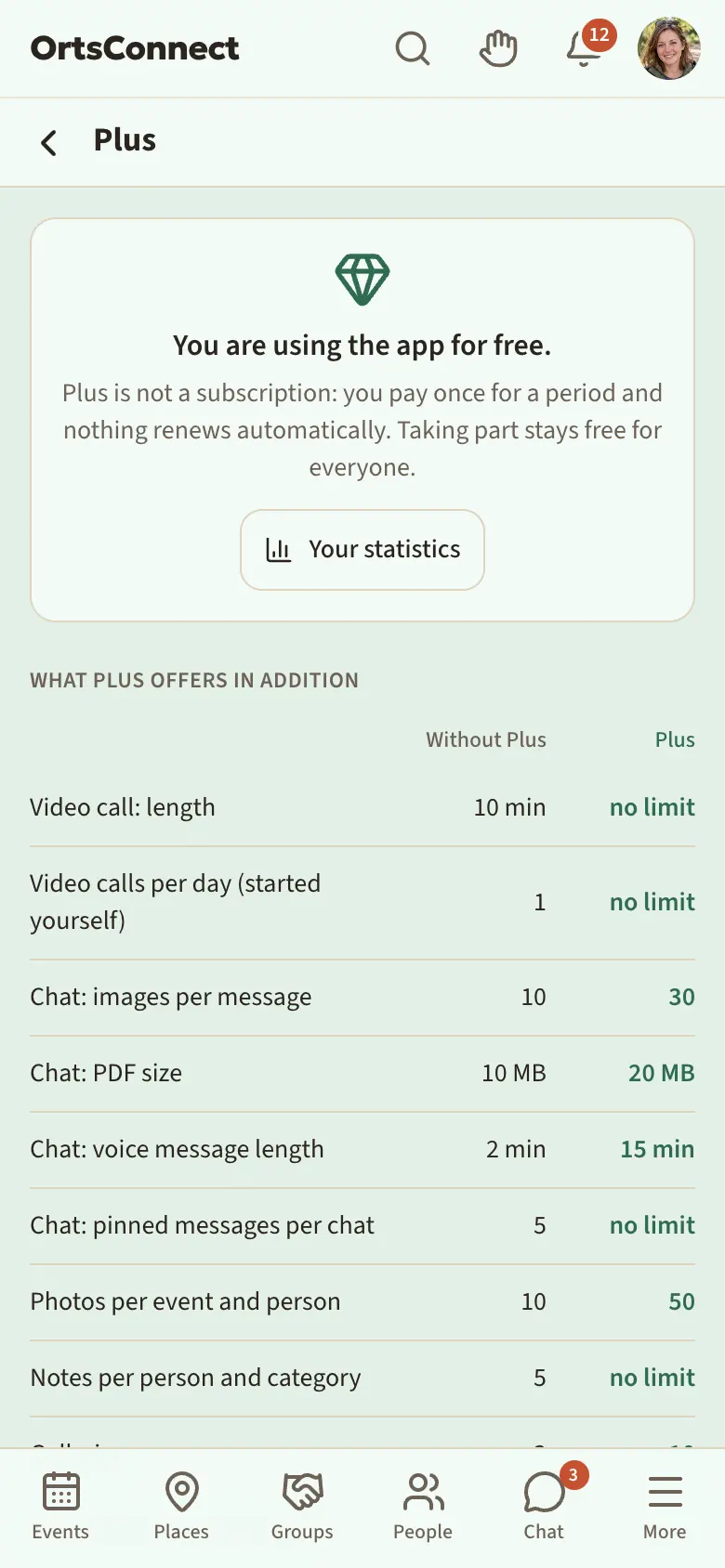
Support us
If DettingenConnect accepts donations, there's a Support us entry under More. There you can donate online or see the details By bank transfer. A donation is voluntary and doesn't unlock anything. Up to €300, your bank statement is enough for the German tax office; above that there's a donation receipt, which you download under Your donations. You can only donate online when signed in and in the browser.
My points
Under My points you see your Balance. You get points when you take part – for example when you book events, join groups or set up your People profile.
- Transfer points: under To, choose a person, enter the number of Points and a Note (optional) and tap Transfer. This works for members of your organisations and for your contacts.
- Leaderboard: every member is listed here with their points, visible only to signed-in users. At the top you choose All time or This month. You see the top 10, with Show all … the whole list and with Top 10 only the short one again; your own row is highlighted in green. Arrows show how many places someone has moved up or down since the previous month (for All time: since the start of the month), and new means: there for the first time. If you don't want to appear there, turn off Show my points on the points leaderboard under Settings › Privacy.
- Donate points: if an organisation accepts donations, you'll find the Donate points button on its page.
- Points for Plus days: if your community offers Plus, you exchange points for Plus days on the Plus page.
13. Your account and your data
Downloading your data
- Open Settings › My data.
- Under Download my data, tap Request a copy of my data.
- DettingenConnect puts the copy together and lets you know as soon as it's ready. Then tap Download ZIP in the same place.
The ZIP file contains all the data DettingenConnect has stored about you. It also includes your other profile photos and the photos from your galleries, each gallery in its own folder. The copy is available for a while; the date is shown next to it. You can request a new copy 24 hours after the last one.
Taking a break
Need some time out without deleting everything straight away? Then pause your account.
- Open Settings › Account.
- Under Take a break, tap Pause and sign out.
During the break you're invisible in People, in search, in the feed and on leaderboards. Your profile says you're taking a break, and nobody can start a new chat with you. You only get emails about security and payments. Everything is kept, including your memberships and your bookings for upcoming events; if you won't be going, cancel them beforehand under My tickets.
The break ends the next time you sign in: Welcome back! Your break is over.
Deleting your account
- Open Settings › My data. In the app from the store there's also a separate Delete account tab for this.
- Tap Delete account …. Only then does the section open.
- There DettingenConnect asks: Fancy a break instead? With Pause and sign out you pause instead (see above).
- If you like, under Would you tell us why you’re leaving? give the reason, for example I’m moving away or Not enough going on here for me, and write what we could do better. This is optional and is evaluated without any link to your account.
- Tick Yes, permanently delete my account in 14 days.
- Tap Request deletion.
Your account is then invisible straight away and is permanently deleted after 14 days. You get an email with the Cancel deletion button; it also works without signing in. If you sign in during the 14 days, DettingenConnect says Your account is being deleted and offers Cancel deletion or Continue deleting and sign out.
What happens when your account is permanently deleted:
- Your account, your profile, your hobbies and your contacts are deleted.
- Your profile photos and your galleries are deleted with all their photos.
- Your upcoming bookings are released.
- Your messages in group chats remain, but with ‘Former member’ instead of your name.
- Payment receipts are kept without your name for the accounts.
Good to know: If you're the only organiser of an organisation, you first have to hand over the organiser role or delete the organisation. How that works is explained in the Handbook for club organisers.
Signing out
Open the avatar menu and tap Sign out at the very bottom.
Privacy, transparency and legal matters
At the bottom under More, in the avatar menu and at the very bottom of every page you'll find Legal notice, Privacy, Terms of use, Transparency and Accessibility. The Transparency page explains in simple words which cookies DettingenConnect sets, where your data is stored and which other servers the server talks to. At the top of every page it says when it was last changed.
If the terms of use change significantly, DettingenConnect asks you in a window the next time you open it: it briefly says what's changing, and under Read the full text you'll find the new version. Tap I agree and everything carries on as usual. If you tap I don't agree, DettingenConnect explains what that means: you can first get a copy of your data and delete your account, or sign out and decide later.
What's new
You'll find what has changed in DettingenConnect in the avatar menu under What's new. If something new has been added since your last visit, a small dot on the avatar shows it. New entries have the New for you label; as soon as you've opened the page, the dot goes out. At the top you choose what you want to see with All, New, Improved or Fixed.
14. Help with problems
I'm not getting any email
- Check your spam folder.
- Check under Settings › Account that your email address is correct. If it says This address hasn’t been confirmed yet., request a new link.
I can't book, join or write
- Have you confirmed your email address? Only then can you take part.
- Are you under 16? Then your parents have to give consent first.
- In the chat: if it says Only the organisers can write in this chat., only organisers can write in this group chat.
I'm not getting notifications on my phone
- Check under Settings › Notifications that the area is set to Instant.
- Check whether your Quiet hours are running right now.
- In the browser: is push turned on under Push on this device? Try it out with Send test push.
- On an iPhone: have you put DettingenConnect on your home screen?
- For organisations: is the bell turned on for the organisation?
There's a note at the top
- No connection – content may be out of date. – Your phone is offline right now. As soon as you have reception again, the note disappears.
- A new version is available. – Tap Reload to get the latest version.
I've forgotten my password
On the Sign in page, tap Forgotten your password? and follow the steps from chapter 1.
I've lost my phone with the authenticator app
When signing in, tap Use a recovery code and enter one of the codes you wrote down. After that you can set up two-factor sign-in again under Settings › Security.
Who can help me?
Under More › Help you'll find the handbooks and, if your community has added any, FAQs.
If you're stuck, write to the team via Help & contact. You'll find the link under More, in the avatar menu and at the very bottom of every page.
- Under What's it about?, choose: Question, Problem with my account, Payment or receipt, Wish or suggestion, Technical fault or Appeal against a decision.
- Write Your message. For a fault you can attach a Screenshot; only the team sees it.
- Tap Send.
If you're signed in, you'll find your requests with all the replies under Settings › My requests; a reply from the team also arrives in the bell. There you carry on writing under Your reply and tap Send reply; with New request you start a new one. Without an account, for example if signing in isn't working, you give your email address and get the reply by email.
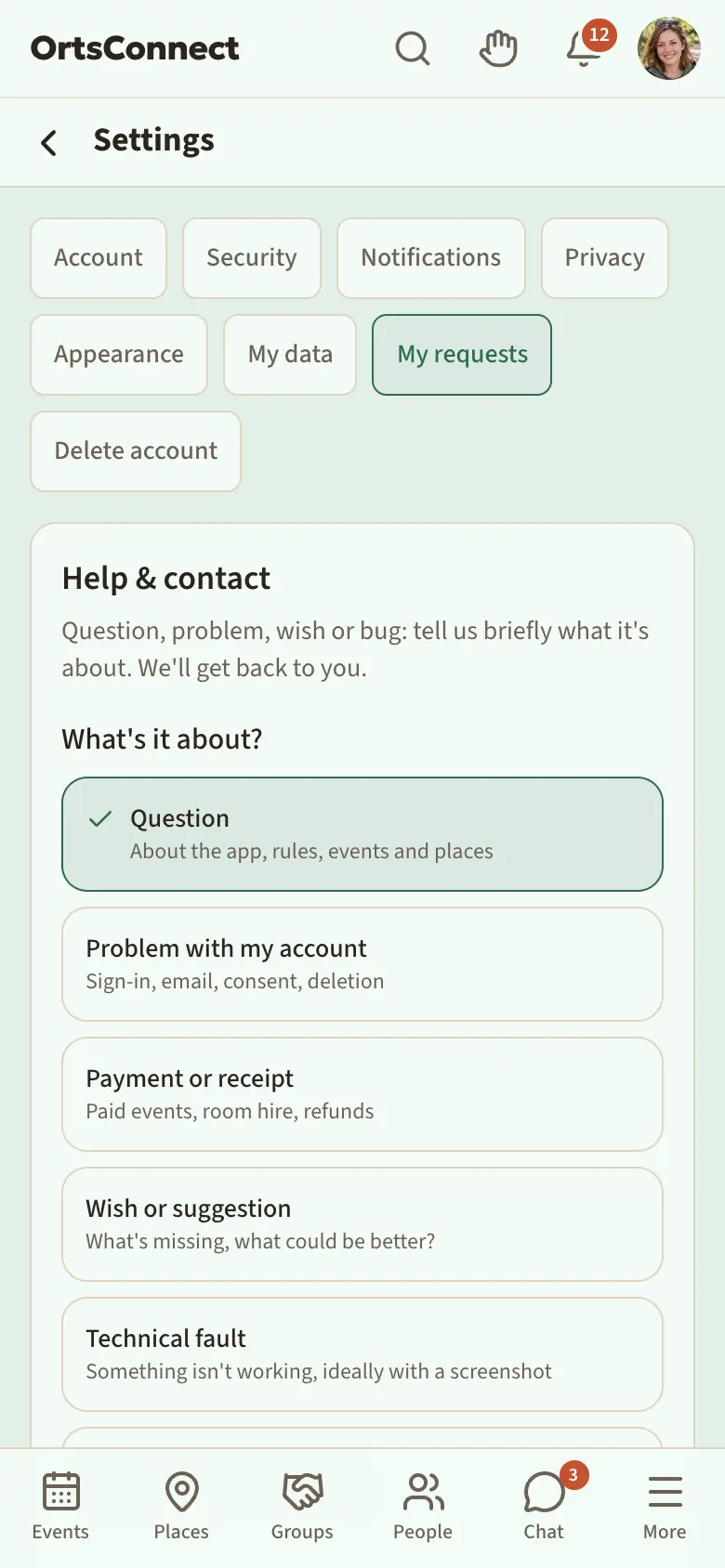
The contact details of the operators of DettingenConnect are in the Legal notice.